





PHPMyAdmin is an open-source tool that allows you to manage MySQL and MariaDB databases through an intuitive web interface. This article provides a detailed guide on how to install, use, and perform basic database management operations in PHPMyAdmin.
High-Speed Proxy - Ready to Try?
ALGO Proxy offers residential, datacenter & 4G proxies in 195+ countries
What is PHPMyAdmin?

When it comes to database management, PHPMyAdmin often stands out as an optimal solution for many developers and administrators. Developed in the PHP programming language, PHPMyAdmin enables users to interact with MySQL visually through a web interface.
Managing databases through PHPMyAdmin simplifies many complex tasks. Instead of using the MySQL command line, users can use forms and menus to perform desired operations. This not only saves time but also minimizes the chance of errors when typing commands.
The system supports multiple languages and provides many powerful features, from executing simple SQL queries to managing complex data tables. This is precisely why PHPMyAdmin has become a popular tool for both beginners and experts in the field of database management.
History of PHPMyAdmin
PHPMyAdmin was first released in 1998 by Tobias Ratschiller. Today, it has become an open-source software project attracting contributions from developers around the world. Over time, PHPMyAdmin has continuously received updates improving its features and security, providing users with a better experience.
Purpose of PHPMyAdmin
The main goal of PHPMyAdmin is to provide a convenient MySQL management interface for users. This makes database management much easier, especially for those unfamiliar with SQL. Common tasks such as creating, editing, and deleting databases and tables can all be accomplished with just a few clicks.
Community and Support
The PHPMyAdmin community is large and active. Users can find extensive documentation, tutorial videos, and discussion forums to help them resolve issues during use. This not only facilitates learning but also helps improve work efficiency.
Key Features of PHPMyAdmin

PHPMyAdmin is not just a simple database management tool. It also integrates many powerful features that help users handle data easily and efficiently.
Support for Multiple Database Types
In addition to MySQL, PHPMyAdmin also supports MariaDB, a fork of MySQL. This gives users more options when choosing a database management system that suits their needs.
User-Friendly Interface
PHPMyAdmin's user interface is very intuitive and easy to use. Users can easily find the features they need without difficulty. Clear menus and information forms also make the user experience better.
User Management
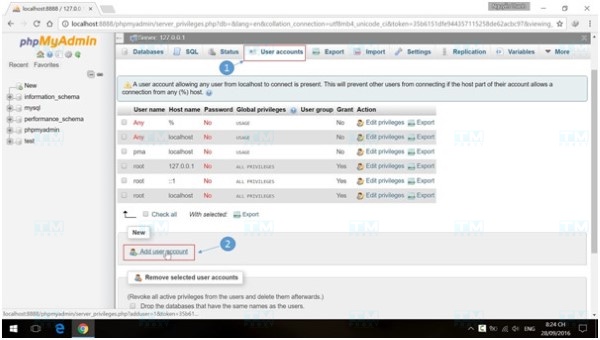
One of PHPMyAdmin's important features is user management. Admins can create, edit, and delete user accounts, assign access permissions for each account, ensuring that only authorized users can perform sensitive operations on the database.
Data Export and Import
PHPMyAdmin supports exporting and importing data in various formats such as CSV, SQL, XML, and Excel. This makes it easier than ever for users to convert and share data between systems.
Advantages and Disadvantages of PHPMyAdmin
Like any other tool, PHPMyAdmin has its own advantages and disadvantages that users should carefully consider before deciding to use it.
Advantages of PHPMyAdmin
One of PHPMyAdmin's greatest advantages is its ease of use. The graphical interface allows users to manage databases effectively without needing extensive knowledge of SQL commands.
Additionally, compatibility with multiple versions of MySQL and MariaDB is a significant advantage. PHPMyAdmin is also continuously updated, bringing new features and security improvements to meet the changing needs of users.
Finally, the large support community is also a strength of PHPMyAdmin. Users can easily find documentation and forums to resolve any issues they encounter.
Disadvantages of PHPMyAdmin
Despite its many advantages, PHPMyAdmin is not a perfect tool. One major disadvantage is its ability to handle large databases. As database size increases, PHPMyAdmin's performance can be affected, making database management more difficult for users.
Additionally, PHPMyAdmin can face security issues if not properly configured. Without careful protection, the database could become a target for attacks.
Finally, although PHPMyAdmin is rich in features, some users still feel they need a more powerful tool with greater customization capabilities, such as the MySQL command line.
Prerequisites for Using PHPMyAdmin

Before you can use PHPMyAdmin, there are some basic requirements that users need to be aware of to ensure the installation and usage process goes smoothly.
Web Server
To run PHPMyAdmin, you need a web server that supports PHP, such as Apache or Nginx. This server is responsible for serving PHP files and processing user requests.
PHP
In addition to having a web server, PHPMyAdmin requires a specific PHP version. You should check the official documentation to determine the PHP version compatible with the version of PHPMyAdmin you are using.
MySQL or MariaDB
Of course, to manage databases with PHPMyAdmin, you need a MySQL or MariaDB server running on your machine. Installing and configuring this database management system is the first step to take.
Required Access Permissions
Finally, you need access to the MySQL or MariaDB server you want to manage. This means you need an administrator account or a user account with sufficient privileges to perform the operations you desire.
Detailed PHPMyAdmin Installation Guide
Installing PHPMyAdmin can be somewhat complex for beginners. However, by following the steps one by one, you can easily complete the process.
Installing Database Operations
First, you need to download PHPMyAdmin from the official website. After downloading, you will have a compressed file containing the PHPMyAdmin source code. Extract this file into the directory where your web server is running.
Next, you need to configure the config.inc.php file. This file contains the connection information for your MySQL database. You will need to specify the server name, username, and password.
If you do not see this file, copy and rename the config.sample.inc.php file to config.inc.php, then open it with a text editor and fill in the necessary information.
Installing Database Table Operations
Next, you need to create a database for PHPMyAdmin to use. You can do this by using SQL commands or through the MySQL command line interface. After creation, make sure the account you are using has sufficient access to that database.
After completing these steps, restart the web server and try accessing the URL where you installed PHPMyAdmin. You should see the login screen appear.
Installation on Windows
If you are using Windows, the installation process may be slightly different. You need to install WAMP or XAMPP, which are software packages that include Apache, PHP, and MySQL. After installation, you can add PHPMyAdmin to the www directory of WAMP/XAMPP.
You also need to follow the same configuration steps as described above. Once everything is ready, simply open your browser and navigate to localhost/phpmyadmin to start using it.
Guide to Using PHPMyAdmin Easily and Effectively
After installing PHPMyAdmin, the next important step is to become familiar with how to use it. Below is a detailed guide on the basic operations you will frequently perform.
Accessing PHPMyAdmin
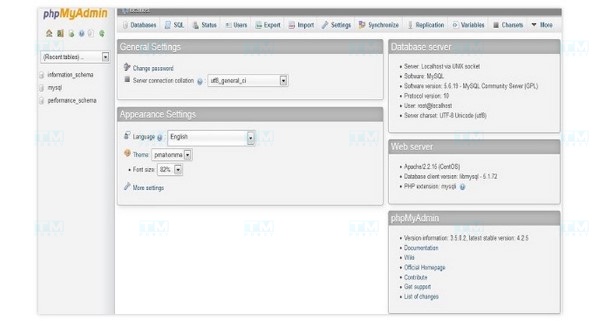
To use PHPMyAdmin, you need to access its web interface through a browser. The common address is http://localhost/phpmyadmin. Make sure the web server is running before performing this step.
Logging into PHPMyAdmin
After accessing the PHPMyAdmin main page, you will see a login screen. Here, you need to enter the username and password of the MySQL account you configured earlier. If you haven't created an account, you can use the root account, but remember that this is not secure.
Managing Databases in PHPMyAdmin
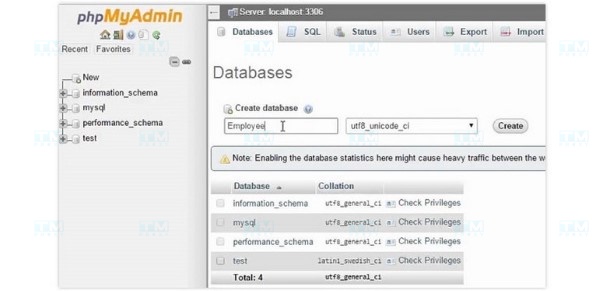
After successfully logging in, you will be taken to the main PHPMyAdmin interface. Here, you will see a list of existing databases. You can create a new database by clicking on the "Databases" tab, entering the new database name in the empty field, and clicking "Create".
Creating Tables and Managing Table Data
Once you have created a database, you can start creating tables. Select the database you just created and click on the "Structure" tab. Here, you will see the option to create a new table. You need to enter the table name and the number of columns you want to create.
After creating the table, you can add data to it by selecting the "Insert" tab. Fill in the information in the fields and click "Go" to save. PHPMyAdmin's interface will help you view and edit data easily.
Querying Data in PHPMyAdmin
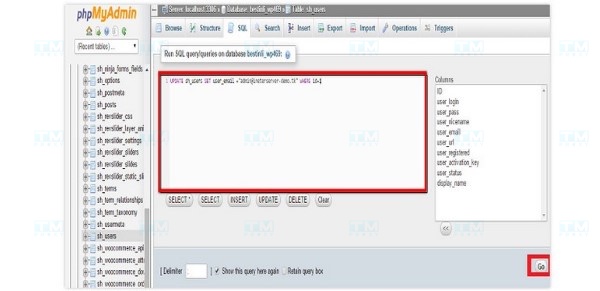
One of PHPMyAdmin's most powerful features is the ability to execute SQL queries. You can select the "SQL" tab on the main interface and enter the SQL command you want to execute. This is particularly useful when you need to perform complex operations or query specific data from a table.
How to Back Up Databases in PHPMyAdmin
Backing up databases is crucial in data management. To back up a database in PHPMyAdmin, simply select the database you want to back up, then click the "Export" tab. Here, you will see many options for exporting data — choose the format you prefer and click "Go" to download the backup file.
What is mTLS? Advantages, disadvantages, applications and how mTLS works
How to Restore a Lost Database
In case you need to restore a backed-up database, the process is very simple. Go to the "Import" tab, select the backup file you saved earlier, and click "Go". PHPMyAdmin will restore your database from this backup file.
Securing Databases in PHPMyAdmin
Security is an important factor when using PHPMyAdmin. Ensure that you use strong passwords for MySQL accounts and do not use the root account for daily tasks. Additionally, setting up SSL for the connection between server and client is also a good method to secure data.
Common Issues During Data Backup in PHPMyAdmin
When backing up data in PHPMyAdmin, you may encounter some issues. Below are common problems and their solutions.
Connection Interruption
One common issue is the database connection being interrupted during backup. This can happen if the database is too large or the network is unstable. To fix this, try again multiple times or split the database into smaller parts before backing up.
Insufficient Access Permissions
If you do not have sufficient access permissions, you may receive an error message when trying to back up data. Make sure the account you are using has sufficient privileges to perform this operation.
File Format Errors
Sometimes, the backup file you download may have format errors. Check the export options before performing the backup to ensure you are using the appropriate format such as SQL, CSV, or XML.
Differences Between PHPMyAdmin and MySQL Console
When it comes to managing MySQL databases, PHPMyAdmin and MySQL Console are both popular tools but have certain differences.
User Interface
The biggest difference between the two tools is the user interface. PHPMyAdmin provides a friendly graphical interface that helps users operate easily without needing to know too much about SQL. Meanwhile, MySQL Console requires users to type SQL commands manually, which can be more difficult for beginners.
Flexibility
MySQL Console offers users greater flexibility in executing complex commands and queries. Users can easily write SQL scripts to automate many tasks, while PHPMyAdmin may be limited by its interface.
Speed
In terms of performance, MySQL Console is typically faster than PHPMyAdmin, especially when working with large databases. PHPMyAdmin can experience speed issues when processing large amounts of data.
{{< test-result title="Comparison of MySQL Management Tools" headers="Criteria|PHPMyAdmin|MySQL Console|HeidiSQL|DBeaver" row1="Interface|Web GUI|Command Line|Desktop GUI|Desktop GUI" row2="Ease of Use|High|Low|Medium|Medium" row3="Speed|Medium|Fast|Fast|Medium" row4="DB Support|MySQL, MariaDB|MySQL|MySQL, PostgreSQL|Multi-DB" row5="Best For|Beginners, hosting|Experienced devs|Windows devs|Cross-platform devs" />}}
Conclusion: PHPMyAdmin is an open-source tool that helps manage MySQL and MariaDB databases through an intuitive web interface. With the ability to create, edit, and delete databases, import and export data in multiple formats, and manage users, it is an ideal choice for beginners. However, it is important to pay attention to security by using strong passwords, SSL, and limiting the use of the root account.