





SSH (Secure Shell) is an encrypted network protocol that enables secure connections to remote servers. This article explains in detail how it works, encryption methods, compares SSH with SSL/TLS and Telnet, and includes guides for connecting on Linux/Windows.
High-Speed Proxy - Ready to Try?
ALGO Proxy offers residential, datacenter & 4G proxies in 195+ countries
Born from the need to replace insecure connection methods like Telnet, SSH quickly became the standard for secure remote access and encrypted file transfer. This article will help you understand what SSH is, from its basic working principles to complex applications in modern network environments.
What is SSH?
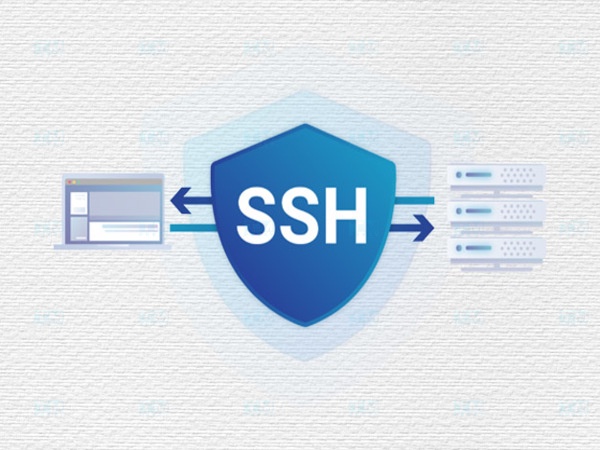
What is SSH? SSH (Secure Shell) is a network protocol that allows users to establish secure connections to remote servers or computer systems. Developed to replace insecure protocols like Telnet, SSH encrypts the entire connection session, ensuring the confidentiality of transmitted data.
SSH is primarily used for remote management of server systems, supporting command-line operations, file transfer via SFTP (SSH File Transfer Protocol), and many other security-related applications. SSH works through password authentication or cryptographic key pairs (public key and private key), ensuring that only authorized users can access the system.
Is SSH Secure?
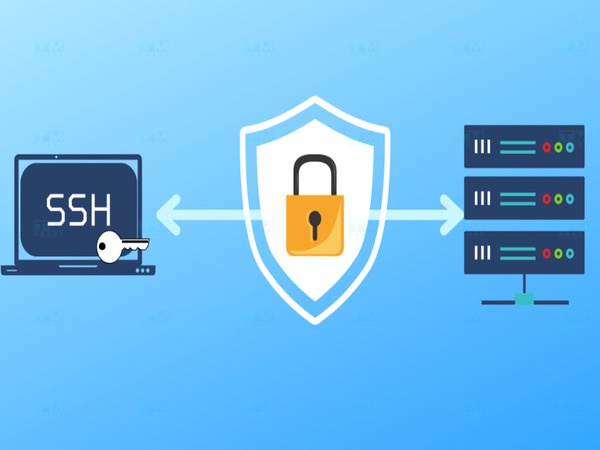
SSH is highly regarded for its security thanks to data encryption throughout the connection process. It uses strong encryption algorithms such as AES (Advanced Encryption Standard) to protect data from eavesdropping or man-in-the-middle (MITM) attacks. When using cryptographic key pairs for authentication, SSH eliminates the need for conventional passwords, helping prevent brute-force attacks or phishing attacks.
Additionally, SSH supports Multi-Factor Authentication (MFA), allowing an extra layer of security by requiring the user to provide an additional authentication factor (such as an OTP code or biometric information) after entering a password or security key.
SSH Use Cases
What are SSH use cases? SSH is used in many different scenarios, from managing servers in datacenters, remote system access, to encrypting data in internal networks. Below are some common scenarios:
In Datacenters

SSH is widely used in datacenters for remote server system management. System administrators can perform tasks such as software installation, configuration management, and system monitoring without being physically present at the datacenter. SSH's security and remote access capabilities save time and effort, especially when managing large-scale systems.
SSH is also used to deploy automated scripts in datacenters, allowing servers to perform scheduled tasks or respond quickly to incidents.
Connecting to Server Systems
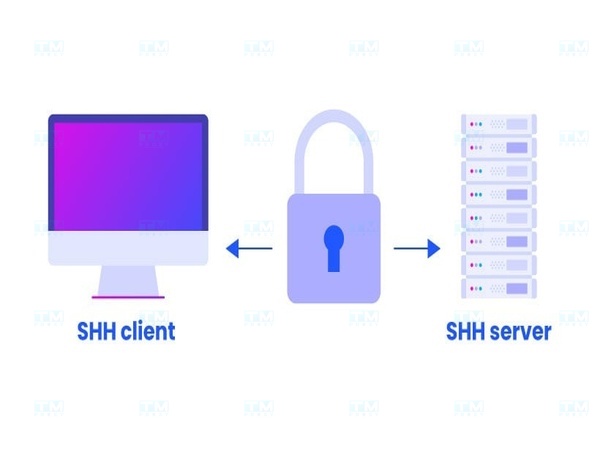
SSH allows secure connection to and control of remote server systems. No matter where you are, as long as you have an internet connection and the appropriate security key, you can access the server to work with the command line, manage files, or perform system maintenance tasks. This is particularly useful for managing distributed systems across multiple countries or regions.
SSH also supports file transfer between server and client through SFTP, a secure variant of the FTP protocol.
In Single Sign-On (SSO) Systems
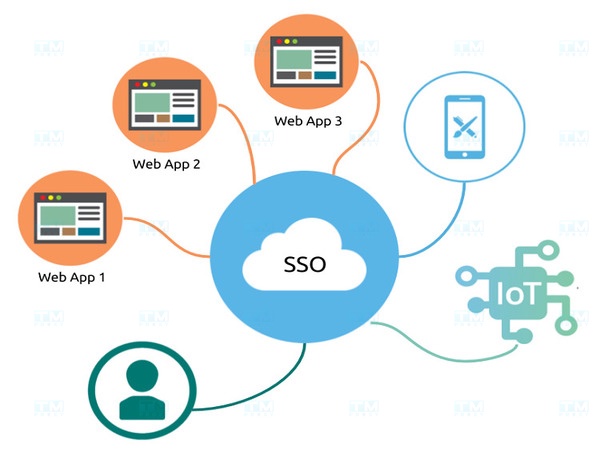
SSH can integrate with Single Sign-On (SSO) systems, allowing users to use a single set of credentials to access multiple different services. This not only increases convenience but also minimizes the risk of password leakage. SSO combined with SSH helps administrators easily control access rights and manage user identities.
For example, in a large organization, users can log into the network through SSO and then use SSH to connect to servers without having to enter a password for each connection.
Data Encryption
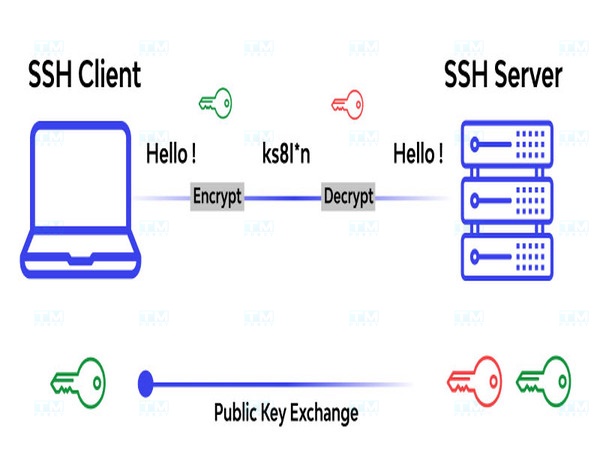
SSH uses strong encryption methods to protect data throughout the transmission process over the network. Data transmitted through an SSH connection is encrypted using algorithms such as AES, RSA, or ECC (Elliptic Curve Cryptography). This ensures that even if the data is intercepted by a third party, it cannot be decrypted without the corresponding key.
In addition to encrypting data, SSH also encrypts login credentials, minimizing the risk of sensitive information leakage during the connection process. Thanks to encryption, SSH becomes an indispensable tool in environments requiring high security, such as in financial companies or government agencies.
Authentication
Authentication in SSH can be performed through two main methods: password authentication and public key authentication. The second method, using a public/private key pair, is considered more secure and is more common in environments requiring high security.
- Password Authentication: This is the simplest authentication method, requiring the user to enter a password to access the system.
- Public Key Authentication: Uses a cryptographic key pair, where the public key is stored on the server and the private key is kept by the user. When connecting, the server uses the public key to verify the user's identity through the private key they possess.
- Multi-Factor Authentication (MFA): SSH can be combined with MFA, requiring the user to provide an additional authentication factor (such as a verification code from an MFA application or an OTP code) in addition to using a password or security key.
SSH provides flexible and secure authentication mechanisms, ensuring that only authorized users can access the system, minimizing the risk of unauthorized intrusion.
How the SSH Protocol Works
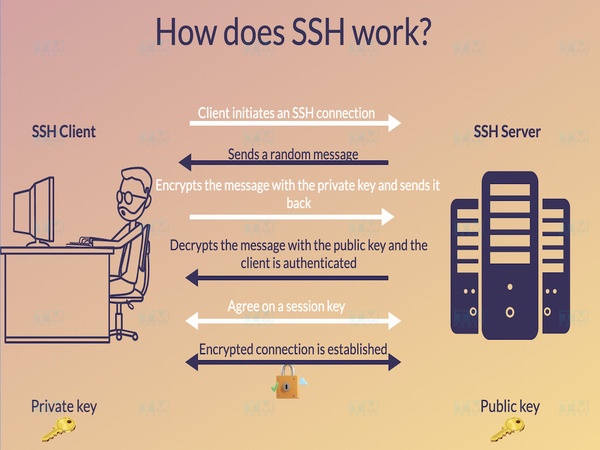
SSH (Secure Shell) operates based on encryption mechanisms to protect data transmitted over the network. When a user initiates an SSH connection to a remote server, the connection process follows these main steps:
- Establishing a TCP Connection: Initially, the client and server establish a TCP connection through the SSH port, typically port 22. This is the first step in creating a data transmission channel.
- Key Exchange and Server Authentication: Once the connection is established, both parties perform a public key exchange process using the Diffie-Hellman algorithm. This ensures that all subsequent data exchange will be encrypted and only the participating parties can decrypt it.
- User Identity Authentication: The server requires the user to prove their identity through password authentication, or using a public/private key pair. When using key pairs, the server checks the user's public key and requires decryption of a challenge using the private key.
- Establishing a Secure Session: After successful authentication, both parties establish an encrypted session, ensuring that all exchanged data, including commands, files, and user data, are protected from eavesdropping attacks.
What is Apache Spark? Overview of a Powerful Data Processing Platform
The working principle of SSH ensures that any connection is encrypted end-to-end, protecting the confidentiality and integrity of data.
Key Functions of SSH
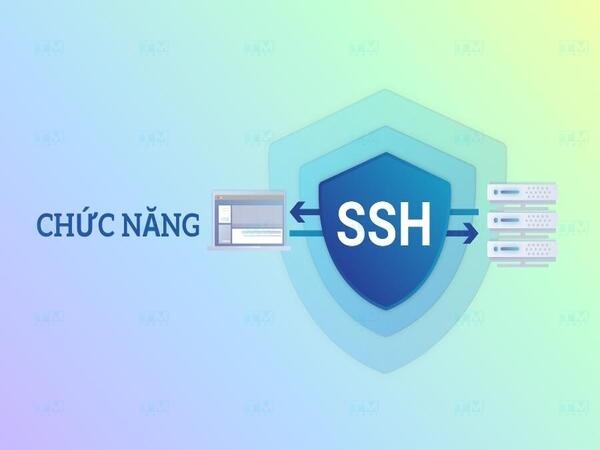
SSH is not just a network protocol; it also provides many important functions for managing and securing server systems. Below are some key functions of SSH:
- Secure Remote Connection: SSH allows users to access remote systems through a secure command-line interface. Users can directly work with files, run commands, and manage remote systems.
- Secure File Transfer (SFTP/SCP): SSH provides secure file transfer protocols such as SFTP (Secure File Transfer Protocol) and SCP (Secure Copy). This ensures that data transfer between client and server is safe without worrying about information leakage.
- Running Remote Applications: SSH can be used to run remote applications on server systems without needing a graphical interface. For example, administrators can start and manage services or web applications remotely via SSH.
- Tunneling and Port Forwarding: SSH supports tunneling and port forwarding techniques, allowing network traffic to be redirected through a secure channel. This is particularly useful when wanting to protect data transmitted over insecure channels.
- Managing Multiple Sessions: SSH supports opening multiple sessions simultaneously on a single connection. This allows administrators to perform multiple management tasks at the same time without having to establish a new connection each time.
- Multi-Factor Authentication (MFA): SSH can be integrated with Multi-Factor Authentication (MFA) systems, requiring users to provide an additional authentication factor beyond a password or public key.
Benefits of Using SSH
What are the benefits of SSH? Using SSH brings many practical benefits to businesses, organizations, and individuals, especially in system management and security activities. Below are the key benefits:
- Absolute Data Security: SSH encrypts all data transmitted over the network, ensuring that information is not leaked or compromised by third parties. This is crucial when managing critical systems, such as in corporate or government environments.
- Safe Remote System Management: SSH allows administrators and users to access remote systems without being physically present at the server location. This saves time and effort, and enables administrators to resolve issues quickly from anywhere.
- Easy to Deploy and Use: SSH is a powerful yet easy-to-use tool that helps users quickly set up and manage secure connections. Most Linux, Unix, and macOS operating systems have SSH built in, making deployment and usage very convenient.
- Scalability and Flexibility: SSH can be customized and extended with various features such as tunneling, port forwarding, and proxying. This makes SSH a flexible tool for managing complex networks and systems.
- Cross-Platform Support: SSH can operate on multiple operating systems, including Linux, macOS, and Windows, making it a standard protocol for remote system management across diverse environments.
- Security with Public Key Authentication: Authentication using public/private key pairs provides a higher level of security compared to using conventional passwords. This helps minimize the risk of brute-force attacks or other network attacks.
- Cost and Resource Savings: Thanks to remote management capabilities and high security, SSH helps organizations save significant costs and resources for system maintenance, deployment, and network monitoring.
SSH is not just a powerful security protocol but also an effective system management tool, helping protect data and ensure system performance in complex environments.
Encryption Methods in SSH
What are the encryption methods in SSH? SSH (Secure Shell) uses three main encryption methods to ensure the confidentiality and integrity of data transmitted between client and server: Symmetric Encryption, Asymmetric Encryption, and Hashing.
All three methods play important roles in ensuring that data exchanged over the network is protected from network attacks, including eavesdropping and spoofing.
Symmetric Encryption
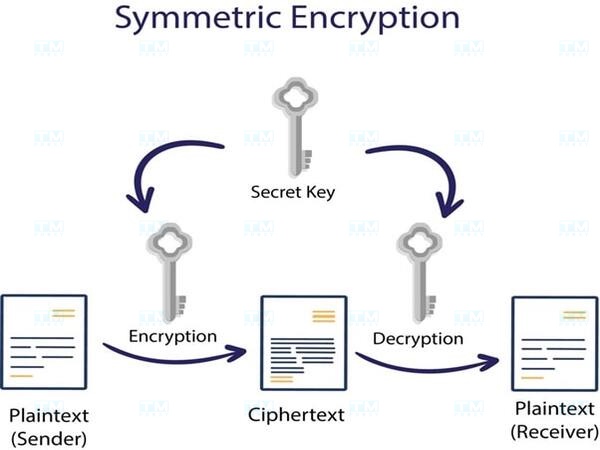
Symmetric encryption is a method that uses a single key for both encrypting and decrypting data. This means that the client and server must share the same secret key. In SSH, symmetric encryption is used after the secure connection has been established. Common symmetric encryption algorithms in SSH include AES (Advanced Encryption Standard), 3DES (Triple Data Encryption Standard), and Blowfish.
The main advantage of symmetric encryption is fast processing speed, as only one key is used for both encryption and decryption processes. However, securely exchanging the key between parties before using symmetric encryption is a challenge.
Asymmetric Encryption
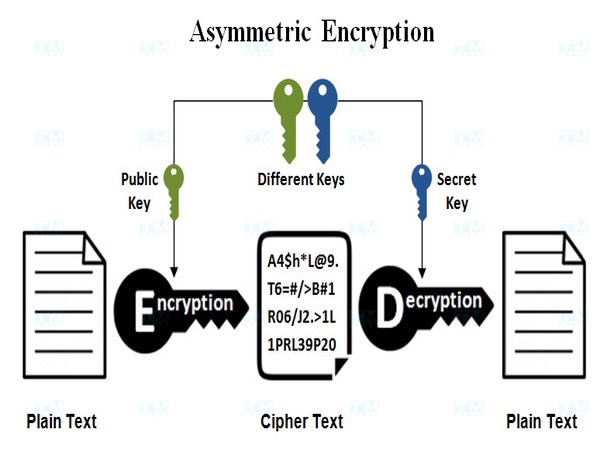
Asymmetric encryption uses two different keys: a public key and a private key. SSH servers typically use asymmetric encryption to securely exchange symmetric keys with the client. During this process, the client encrypts data using the server's public key, and only the server with the private key can decrypt this data.
Common asymmetric encryption algorithms include RSA (Rivest-Shamir-Adleman) and ECDSA (Elliptic Curve Digital Signature Algorithm). Although asymmetric encryption provides higher security, it is slower than symmetric encryption. Therefore, SSH only uses asymmetric encryption during the initial key exchange phase.
Hashing
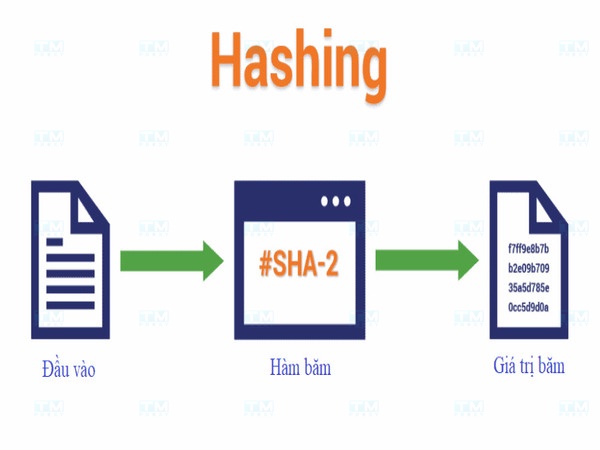
Hashing is a method that creates a fixed-length string of characters from any input data, called a hash. The purpose of hashing in SSH is to ensure data integrity by checking whether data has been altered during transmission.
SSH uses hashing algorithms such as SHA (Secure Hash Algorithm) and MD5 (Message Digest 5) to generate hashes from data. When data is transmitted between client and server, both parties compare hashes to ensure that the data has not been tampered with or modified.
SSH Encryption Setup and Processing Workflow
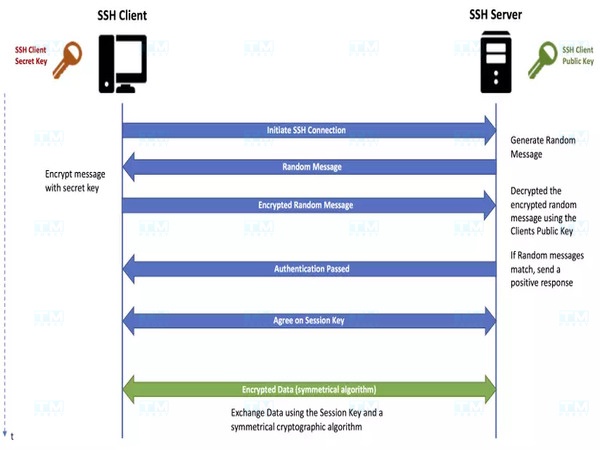
The encryption setup process in SSH occurs in multiple stages, from host identification to user authentication. Below is the detailed workflow for each stage.
Host Identification Stage
When a new SSH connection is established, the server sends its public key to the client for identification. The client checks whether the server's public key matches a previously stored copy. If the key does not match or does not exist, the client warns the user about the possibility of connecting to a spoofed server.
This identification stage helps prevent man-in-the-middle attacks by ensuring that the client is connecting to the correct server they intended.
Session Encryption Negotiation Stage
After the identification process is complete, the client and server proceed with session encryption negotiation. Both parties agree on the symmetric encryption algorithm to be used throughout the session. This process uses asymmetric encryption to securely exchange the symmetric key.
The choice of encryption algorithm depends on the capabilities of both parties and the desired security level. After the symmetric key is exchanged, all data transmitted in the SSH session will be encrypted using this key.
User Authentication Stage
Finally, after establishing a secure channel, the server requests the client to authenticate the user's identity. SSH supports several different authentication methods, including:
- Password Authentication: The user enters a password to prove their identity. However, this method is less secure compared to using public keys.
- Public Key Authentication: The client sends the public key to the server, and the server requests the client to use the private key to decrypt a challenge. This method is more secure because only the user with the private key can authenticate.
After the user is authenticated, the SSH connection is complete and the user can begin working on the remote server securely.
Guide to Connecting SSH with a Linux Server
SSH (Secure Shell) is the standard protocol for securely connecting to and managing Linux servers remotely. To connect via SSH to a Linux Server, you need to follow these basic steps:
Configuring the Linux Server to Accept Connections
Before connecting via SSH, the Linux Server must be configured to accept remote SSH connections. This includes the following steps:
- Install OpenSSH Server: First, ensure that the server has the OpenSSH service installed. Use the following command to install: "sudo apt-get install openssh-server". For other distributions, use the appropriate command for their package management system.
- Check SSH Service Status: Ensure the SSH service is running by checking with the command "sudo systemctl status ssh". If it is not running, you can start the service with "sudo systemctl start ssh".
- Configure the SSH Configuration File: You can customize options such as port and access permissions in the SSH configuration file with the following command: "sudo nano /etc/ssh/sshd_config". After changing the settings, restart the SSH service with "sudo systemctl restart ssh".
Installing and Configuring SSH for the Server
After installing OpenSSH Server on the Linux server, you can further configure it to enhance security:
- Change the Default Port: By default, SSH uses port 22. To avoid brute-force attacks, you can change this port in the /etc/ssh/sshd_config file: "Port 2200".
- Disable Root Login: For better security, you should disable remote root login by editing the following line in the SSH configuration file: "PermitRootLogin no".
- Use Public Key Authentication: To avoid using passwords, you can enable public key authentication. Copy the client's public key to the ~/.ssh/authorized_keys file on the server.
Guide to Connecting SSH on Windows
On Windows, you can connect via SSH through command-line tools or external applications like PuTTY. If using Windows 10 or later, you can use the SSH command directly from Command Prompt or PowerShell:
- Open Command Prompt or PowerShell.
- Use the SSH command: "ssh user@server_ip" and enter the password to connect to the Linux server.
Additionally, with the latest Windows 10 versions, you can also install Windows Subsystem for Linux (WSL) to use Linux tools like ssh directly on the Windows environment.
SSH PuTTY
PuTTY is a free and most popular software for SSH connections from Windows operating systems. PuTTY supports multiple connection protocols, including SSH, Telnet, and SCP. To use PuTTY:
- Download and install PuTTY from the official website.
- Open PuTTY and enter the server's IP address and SSH port (usually 22).
- Click Open to initiate the connection and enter authentication credentials.
PuTTY provides an easy-to-use graphical interface and supports saving connection configurations, making it easy for users to manage multiple SSH connections.
ZOC7 Terminal
ZOC7 Terminal is a paid software designed for system administrators and users who need remote connections via SSH, Telnet, and many other protocols. ZOC7 is known for its attractive interface, high customizability, and strong support for many different types of systems.
- Diverse Protocol Support: ZOC7 supports SSH, Telnet, Rlogin, and SCP, enabling connections to many different types of servers.
- Session Management: You can open multiple SSH sessions in the same window and easily switch between them.
- Powerful Integration: ZOC7 allows interface and shortcut customization, improving work efficiency. Although ZOC7 has a license fee, with its superior features and support for multiple protocols, it is a popular choice for IT professionals and system administrators.
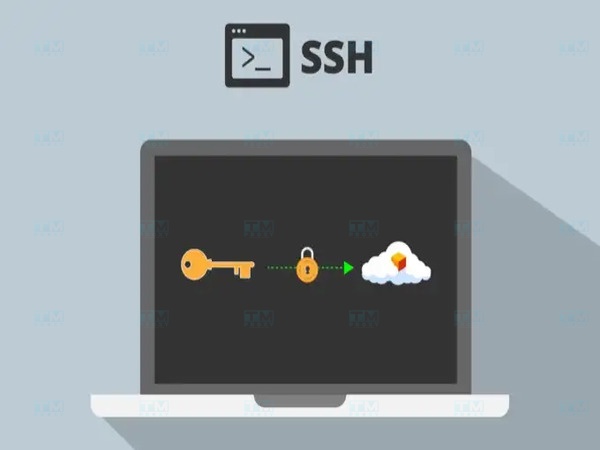
On Linux and MacOS, SSH connections are very easy because both operating systems have a built-in SSH Client in the terminal. Below are the detailed steps to connect via SSH:
- Open Terminal: Both Linux and MacOS have a pre-installed Terminal application. To open terminal:
- On Linux, you can find and open Terminal from the application menu or press the key combination Ctrl + Alt + T.
- On MacOS, press Command + Space to open Spotlight and search for Terminal.
- Use the SSH Command: SSH command syntax: ssh username@server_ip
- username: The username on the remote server.
- server_ip: The IP address or domain name of the remote server.
- Verify the Connection: After entering the SSH command, the system will ask you to enter the password for the remote account. If this is the first time you are connecting to the server, you will receive a warning about the computer not recognizing the remote server. Type yes to continue.
- Use SSH Keys to Log In: If you do not want to enter a password each time you connect, you can use SSH keys:
- Generate SSH Keys (if you haven't already): Use the command "ssh-keygen -t rsa". The key will be saved in the ~/.ssh/id_rsa.pub directory on your computer.
- Copy the Public Key to the Server: "ssh-copy-id username@server_ip"
- Connect to the Server Using a Custom Port: If the server uses an SSH port other than the default port 22, you can use the -p option to specify the port with the command "ssh -p custom_port username@server_ip"
- Disconnect: When you have finished your work, you can disconnect the SSH connection by typing "exit" or pressing Ctrl + D to close the session.
Using SSH on Linux and MacOS is quite simple and powerful, allowing you to securely manage remote servers. The built-in SSH Client on Linux and MacOS makes SSH connections convenient for users on any operating system.
Adding a Public Key to the Server
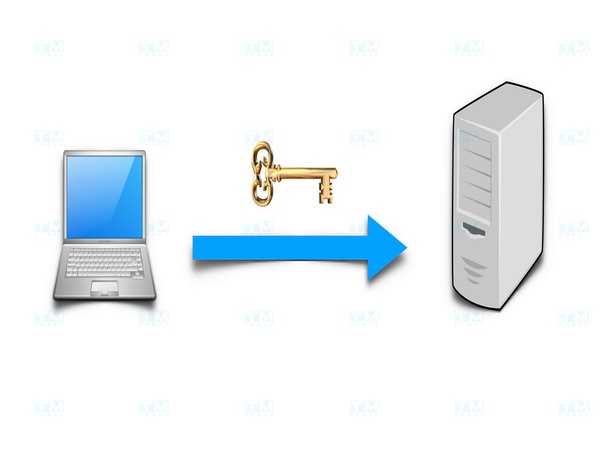
Adding a Public Key to the server is an important step in setting up a secure SSH connection without needing to enter a password each time. Below is the detailed process to accomplish this:
- Generate an SSH Key Pair: If you haven't generated an SSH key pair yet, open the terminal and enter the following command "ssh-keygen -t rsa". This command will create a key pair, including a private key and a public key. The public key is typically saved in ~/.ssh/id_rsa.pub.
- Copy the Public Key to the Server: You can use the ssh-copy-id command to automatically copy the public key to the server. The syntax is as follows: "ssh-copy-id username@server_ip"
- Verify the Connection: After adding the public key, you can try connecting to the server without entering a password with the command "ssh username@server_ip". If everything has been set up correctly, you will be connected without needing to enter a password.
Comparing SSH with SSL/TLS and Telnet
In the modern networking world, information security is a top priority. Three popular protocols today are SSH, SSL/TLS, and Telnet, which play important roles in establishing connections and transmitting data between network devices. Each of these protocols has its own characteristics and use cases, creating a diverse picture of how information is protected in the digital environment.
Comparing SSH and SSL/TLS
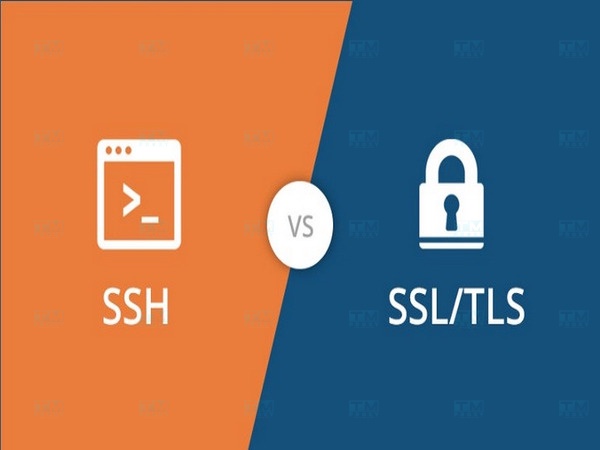
SSH (Secure Shell) and SSL/TLS (Secure Sockets Layer/Transport Layer Security) are two different security protocols used to protect data transmitted over the network, but they serve different purposes.
| Criteria | SSH | SSL/TLS |
|---|---|---|
| Purpose | Secure remote access, system administration, file transfer | Securing web connections (HTTPS), securing data transmission between client and server |
| Mechanism | Uses public/private key pairs to encrypt data | Uses digital certificates and a handshake process to establish an encrypted channel |
| Related Protocols | SCP, SFTP, Tunneling | HTTPS, SMTPS, FTPS |
| Security | Strong encryption, supports two-factor authentication | Encryption with strong algorithms, authentication via digital certificates |
| Authentication | Based on passwords, public/private key pairs | Based on digital certificates and handshake process |
| Common Applications | System administration, remote server management, file transfer | Securing web data transmission, e-commerce transactions |
| Performance | High, low resource consumption | Lower performance due to complex handshake and encryption |
| Installation Complexity | Simple installation, requires key configuration | Requires digital certificates, more complex configuration |
| Encryption Mechanism | Session encryption using algorithms like AES, RSA | Session encryption using algorithms like AES, RSA, SHA |
| Extended Features | Port forwarding, tunneling, file transfer | Web connection security, email, VPN |
In conclusion, both SSH and SSL/TLS are powerful tools for protecting information transmitted over the network, but each protocol has its own advantages suited to different use cases. SSH excels in secure remote management and encrypted file transfer, while SSL/TLS is the foundation for web security and client-server applications.
Comparing SSH and Telnet
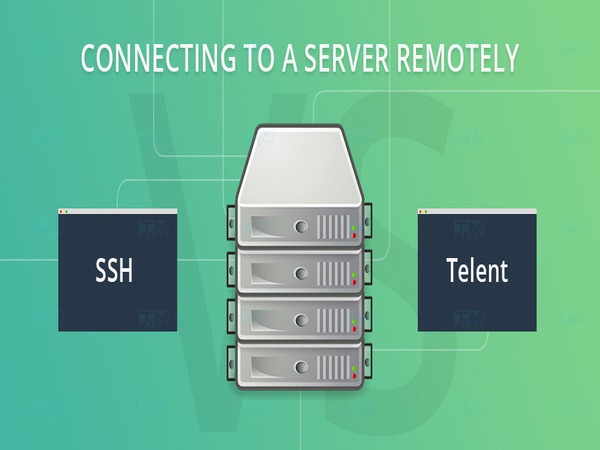
SSH and Telnet are both protocols used for remote access to network devices and servers, but they have significant differences in security and functionality. Below is a detailed comparison table between SSH and Telnet.
| Criteria | SSH (Secure Shell) | Telnet |
|---|---|---|
| Purpose | Secure remote access, system administration, file transfer | Remote access to network devices and servers |
| Mechanism | Encrypts all transmitted data using public/private key pairs | Transmits data in plaintext, no encryption |
| Security | Strong encryption, resistant to eavesdropping and man-in-the-middle attacks | No encryption, vulnerable to eavesdropping and man-in-the-middle attacks |
| Authentication | Uses passwords, public/private key pairs, or two-factor authentication | Uses passwords only, no encryption protection |
| Common Applications | System administration, remote server management, secure file transfer | Network device management, system administration in local area networks (LAN) |
| Performance | Higher resource consumption due to encryption mechanism | Higher performance due to no encryption |
| Installation Complexity | Requires key pair configuration and security customization | Simple installation, no security configuration required |
| Encryption Mechanism | Encrypts entire session using algorithms like AES, RSA | No encryption, all transmitted data is in plaintext |
| Extended Features | Port forwarding, tunneling, secure file transfer | No extended features supported |
| Public Network Usability | Safe to use on public networks | Unsafe, vulnerable to attacks on public networks |
In summary, the comparison between SSH and Telnet clearly shows the evolution of network security technology. Transitioning from Telnet to SSH is a necessary step for any organization that wants to enhance its security in today's complex network environment.
Security Issues Related to SSH
What are the security issues related to SSH? SSH (Secure Shell) is a widely used protocol to ensure secure connections between client and server during remote access. However, despite its high security, SSH still faces some potential security issues if not properly configured and managed.
- Brute Force Attacks: Brute force attacks occur when hackers attempt to log into the system by trying many combinations of usernames and passwords until they find the correct pair. If SSH is not configured with strong authentication or does not use login limits, the system can be easily attacked. The solution is to use public key authentication instead of passwords and configure firewalls or security tools like Fail2Ban to block IP addresses with suspicious login behavior.
- SSH Software Vulnerabilities: Older SSH versions may contain security vulnerabilities that hackers can exploit to perform attacks such as remote exploitation or privilege escalation. Not updating to the latest version of OpenSSH or other SSH implementations makes the system vulnerable. Therefore, administrators need to monitor and update SSH software regularly to ensure all security vulnerabilities are patched.
- Weak Password Authentication: Using weak passwords or not setting length and special character requirements for passwords makes the system vulnerable to brute force attacks. To address this, administrators should configure public key authentication instead of passwords and disable root login to minimize the risk of attacks.
- Man-in-the-Middle (MitM) Attacks: In some cases, if the client does not properly authenticate the server, hackers can impersonate the server and read or modify information transmitted between client and server. This is particularly dangerous when SSH is used over public or untrusted networks. To prevent MitM attacks, it is necessary to ensure that the client only connects to known servers by verifying the server's fingerprint.
- SSH Tunneling Abuse: SSH tunneling allows secure data transmission, but if not properly controlled, it can be abused to bypass firewall policies or create unmonitored data tunnels. This can lead to high security risks when sensitive data is leaked. To prevent this, strict monitoring and control of SSH tunneling usage is needed, allowing connections only from trusted IP addresses.
- Insecure Key Pairs: If the private key is stolen or weak public and private keys are used, attackers can easily infiltrate the system. For protection, use strong key pairs with a minimum length of 2048-bit and configure a passphrase to protect the private key.
- Ineffective User Management: If user access permissions are not managed effectively, especially with root accounts, the SSH system becomes a target for attacks. Use access management policies, check login logs, and configure accounts with the minimum necessary permissions.
- SSH System Misconfiguration: Configuration errors such as leaving the default SSH port (22) open or allowing password authentication and direct root login increase security risks. Change the default port, configure firewalls, and disable root login to minimize the risk of attacks. Overall, to ensure the safety of the SSH system, administrators need to regularly check and update security configurations while applying strong authentication and monitoring measures to prevent potential threats.
{{< test-result title="Comparison of SSH Authentication Methods" columns="Method | Security | Convenience | Brute-force Resistance | Suitable For" rows="Password | Medium | High | Low | Test environments;Public Key (RSA 4096) | High | High | Very High | Production server;Public Key (Ed25519) | Very High | High | Very High | Production server (recommended);Password + MFA (TOTP) | High | Medium | High | Sensitive servers;Certificate-based | Very High | Medium | Very High | Enterprise / multiple servers" />}}
Conclusion: Understanding how SSH works and applying it correctly will help you enhance the security level of your system. SSH not only encrypts the entire connection session but also provides strong authentication, tunneling, and secure file transfer — an indispensable tool for every system administrator.