





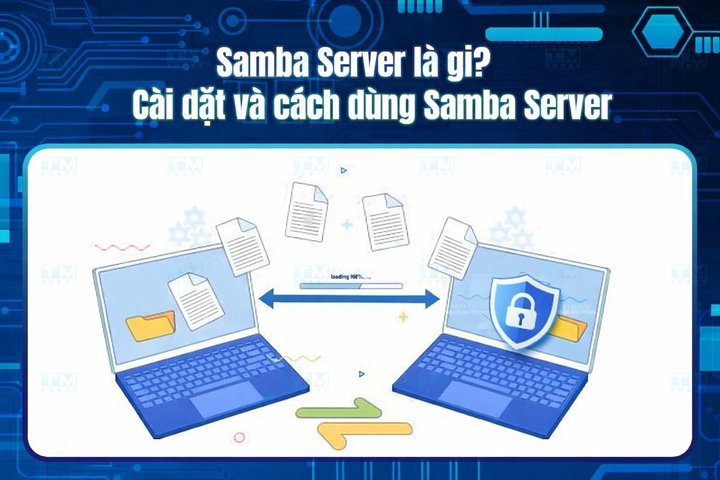
Samba Server is an open-source software that enables file and printer sharing between Windows, macOS, and Linux operating systems via the SMB protocol. This article provides a detailed guide on how to install, configure, and use Samba Server on a router.
High-Speed Proxy - Ready to Try?
ALGO Proxy offers residential, datacenter & 4G proxies in 195+ countries
Understanding Samba Server
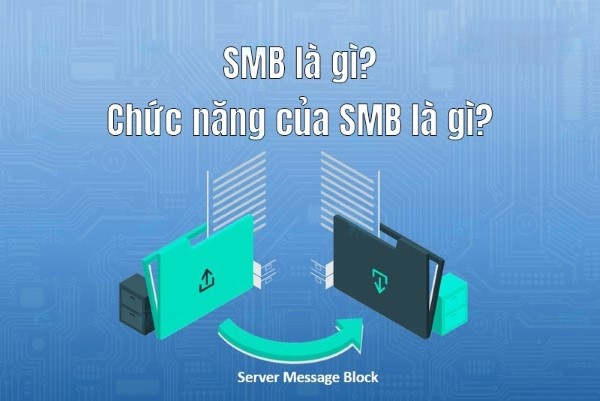
When talking about Samba Server, we are referring to a powerful tool that connects different devices within a local network. Samba uses the SMB (Server Message Block) protocol to accomplish this. First developed in the 1990s, Samba Server has become the standard solution for many organizations thanks to its flexibility and high compatibility.
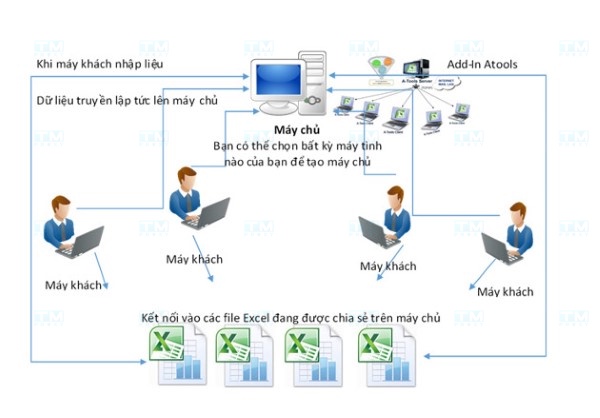
Samba Server acts as a bridge between Unix/Linux systems and Windows servers. This allows users to perform various tasks such as copying files, accessing remote printers, and even building shared directories without facing any operating system barriers.
How Samba Server Works
To better understand Samba Server, we first need to know how it operates. Samba works on the SMB protocol to send and receive requests between the server and client. When a client sends a request to the server, the data transmission method is configured to ensure all data is transferred as quickly and efficiently as possible.
Although Samba Server is primarily used in local network environments, it can also be configured to operate over the Internet. This allows remote users to access resources easily, as long as they have valid access permissions.
Common Applications of Samba Server
Samba Server goes beyond just file and printer sharing. It can be used for a variety of applications, including:
- File Sharing: Samba allows users to share files between different operating systems without compatibility issues.
- Printer Management: Users can connect and share printers over the network, saving costs and simplifying management.
- Active Directory Integration: Samba also supports integration with Microsoft's Active Directory, making user and access management easier.
History and Development of Samba Server
Samba Server was not built overnight. With origins dating back to the 1990s, the development history of Samba Server reflects the continuous advancement in information technology.
The Beginning of Samba Server
Samba was developed by Andrew Tridgell during a time when the UNIX operating system was very popular. He sought a way to enable UNIX systems to communicate with Windows machines. This idea sparked a revolution in resource sharing within network environments.
The earliest versions of Samba Server were simply a collection of tools for communicating with the SMB protocol. However, over time, Samba proved its necessity in the evolution of networking technology.
Growth and Feature Expansion
Through each version, Samba Server has continuously improved and expanded its features. From simply sharing files and printers, Samba now supports many advanced features such as LDAP integration, Active Directory, and even Kerberos authentication.
This development shows that Samba Server has become an indispensable tool for large enterprises and organizations where data and resource sharing is critically important.
Current Status and Future of Samba Server
Today, Samba Server remains widely used around the world. With the rise of cloud computing and IoT technologies, Samba has begun to evolve to meet new market demands. Many developers are working to optimize Samba for cloud environments, allowing users to easily access their data from anywhere.
The future of Samba Server looks promising as more and more organizations recognize the value of using it for network resource management.
How Samba Server Works
To gain a deeper understanding of Samba Server, we need to explore how it works. The operation of Samba Server can be divided into several stages.
SMB Protocol
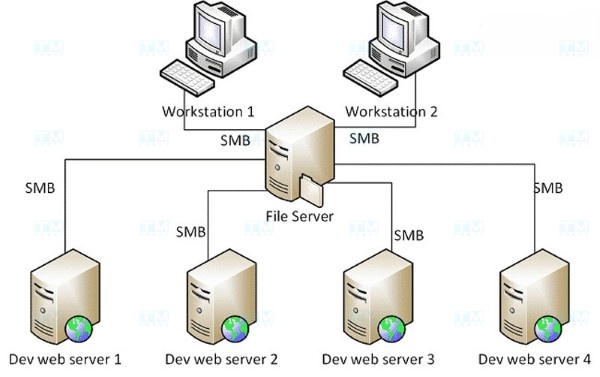
The SMB protocol is the core foundation of Samba Server. It allows computers on a network to efficiently exchange information and resources. SMB operates on the client-server model, meaning one computer (client) can send requests to another computer (server) to retrieve information or resources.
When a client sends a request to the server, Samba Server processes the request by looking up shared resources and returning results to the client. This process is typically very fast and optimized to minimize latency.
User and Access Management
One of the key features of Samba Server is its ability to manage users and access permissions. Samba allows network administrators to configure access permissions for each user, ensuring data security.
Administrators can set up user groups, grant access rights to individual folders, or even completely restrict access for certain users. This helps create a secure and reliable network environment.
Connection and Data Transfer
When a user attempts to access shared resources on Samba Server, the connection and data transfer process works as follows: first, a connection request is sent from the client to Samba Server. If the server validates the request, it establishes a connection and grants the client access to the shared resources.
Once the connection is successfully established, Samba Server manages the data transfer process, ensuring all files are transferred quickly and accurately. Additionally, Samba provides error recovery mechanisms to minimize data loss during transfer.
Key Features of Samba Server
Samba Server is more than just a typical file-sharing software. It offers many outstanding features that improve performance and security in network environments.
Efficient File Sharing
One of the most notable features of Samba Server is its ability to share files between different operating systems. Users can easily access files on the Samba server from Windows, Mac, or Linux devices without compatibility issues. This creates a flexible and convenient working environment.
Samba Server supports a wide range of file formats, allowing users to share all types of documents, images, videos, and other file types. As a result, Samba becomes the ideal choice for organizations that need to transfer information quickly.
Network Printer Support
In addition to file sharing, Samba Server also allows users to share printers on the network. This helps save costs and improves work efficiency. For example, an office can use a shared printer through Samba without requiring each computer to connect directly to the printer.
Samba Server also supports various types of printers, including laser and inkjet printers. This provides flexibility for users to choose devices that suit their needs.
Active Directory Integration
One of Samba Server's strengths is its ability to integrate with Microsoft's Active Directory (AD). This feature allows Samba Server to function as an AD server, making user and access management straightforward.
Administrators can easily add, delete, and modify user information in AD without needing to use Windows' complex interface. This saves time and effort for IT teams in large organizations.
Security
Security is one of the top priorities of Samba Server. The software supports multiple authentication methods, including password authentication, Kerberos, and NTLM. This ensures that only authorized users can access shared resources.
The robust access management system allows administrators to configure individual permissions for each user or user group. Thanks to this, Samba Server provides a safe and reliable working environment.
Guide to Installing and Using Samba Server Integrated on a Router
Installing and using Samba Server on a router is fairly straightforward, but certain steps must be followed to ensure everything runs smoothly.
Preparation
First, you need a router that supports Samba Server. Many modern routers come with built-in Samba functionality, so check your device's specifications before getting started.
What is Trackback? Applications, Installation, and How to Use Trackback
Next, make sure your router is connected to the internet and has a stable IP address. If you are unsure how to check your router's IP address, refer to the device's user manual.
Installing Samba Server on the Router
The first step in the installation process is to log in to your router's management interface. Typically, you will need to enter the router's IP address into a web browser, for example: 192.168.1.1 or 192.168.0.1. Then, enter the login credentials you set up when configuring the router.
Once logged in, navigate to the "USB" or "Shared Storage" section in the management interface. Here, you will find the option to enable Samba Server. Check the corresponding box and save your changes.
Next, you need to configure the shared folder. You can create a dedicated folder on a USB drive or external hard drive connected to the router. Make sure this folder has the appropriate access permissions for devices on the network.
Accessing Samba Server from a Client
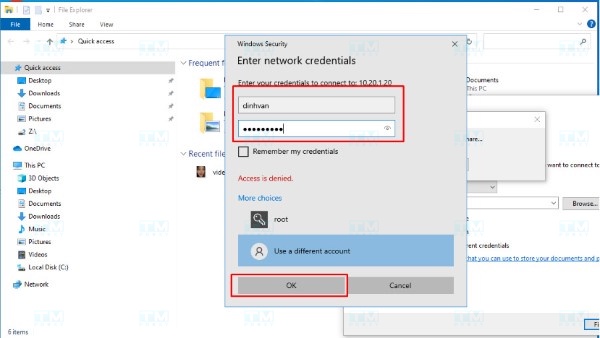
After successfully installing Samba Server on the router, the next step is accessing shared resources from other devices on the network. For Windows computers, simply open File Explorer and enter the router's IP address in the address bar, for example: \192.168.1.1.
If everything is working properly, you will see a list of shared folders. Click on the folder you want to access and enter login credentials if prompted.
For macOS, open Finder, select "Go" -> "Connect to Server", then enter the IP address just like on Windows. Click "Connect" and enter your login credentials to access shared resources.
Troubleshooting Common Issues
During the installation and use of Samba Server, you may encounter issues such as being unable to access shared folders, authentication errors, or slow data transfer speeds.
To fix access issues, double-check the router's IP address and make sure Samba Server has been enabled. For authentication errors, ensure you have entered the correct login credentials.
Regarding speed issues, this could be due to insufficient network bandwidth or the router being overloaded. Try restarting the router and checking network speeds to see if the problem is resolved.
{{< test-result title="Comparison of file sharing solutions in networks" headers="Criteria|Samba (SMB)|NFS|FTP|WebDAV" row1="Protocol|SMB/CIFS|NFS|FTP/SFTP|HTTP/HTTPS" row2="OS Support|Windows, Linux, Mac|Mainly Linux/Unix|All|All" row3="Authentication|Password, Kerberos, NTLM|UID/GID|Username/Password|HTTP Auth" row4="AD Integration|Yes|Not directly|No|No" row5="Best For|Mixed OS networks|Pure Linux networks|Remote file transfer|Web access" />}}
Conclusion: Samba Server is a powerful open-source software that enables file and printer sharing between Windows, macOS, and Linux via the SMB protocol. With Active Directory integration, support for multiple authentication methods, and easy installation on routers, Samba is the standard solution for organizations that need to manage multi-platform network resources.