






Localhost is the loopback address 127.0.0.1 that allows you to access a web server directly on your personal computer without needing an internet connection. It is an essential tool that helps developers build, test, and debug web applications in a safe environment before deploying to a production server.
High-Speed Proxy - Ready to Try?
ALGO Proxy offers residential, datacenter & 4G proxies in 195+ countries
What is Localhost?
Localhost is a special domain name used to refer to your own computer. It is used to access web services running on the local computer through a web browser. When you type "localhost" into the browser's address bar, you are requesting the browser to connect to a web server running on your own machine.
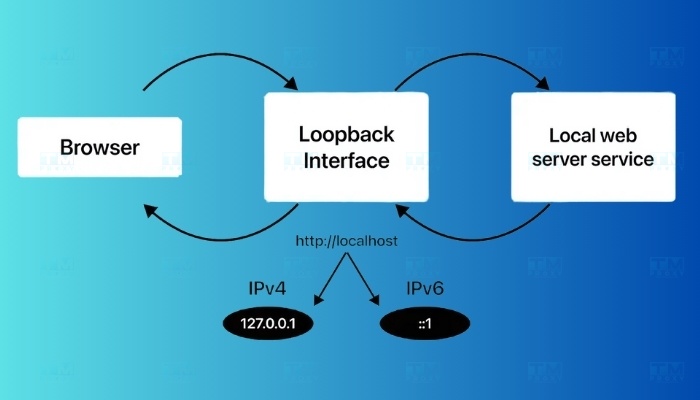
Localhost is typically associated with the IP address 127.0.0.1, which is the loopback address in IPv4. In IPv6, the equivalent address is ::1. When using localhost, you can test and debug web applications, services, or websites without needing an internet connection or pushing code to a remote server.

Benefits of Using Localhost
When learning about software development, "localhost" is one of the basic yet very important concepts. Localhost refers to the computer you are using to run applications or network services. The default IP address of localhost is 127.0.0.1, which connects to the personal computer without needing an external network connection.
Safe Development and Testing
Localhost is an ideal environment for developing and testing web applications. When using localhost, you can run and test source code directly on your personal computer without uploading it to a real server. This helps minimize errors when deploying the application to a production environment.
Cost Savings
When using localhost, you don't need to rent a server or purchase hosting during the initial development phase. All functionalities can be run and tested on your personal computer, saving costs for new projects or those learning to code.
Faster Testing and Development
Because localhost is a direct connection on your computer, access and testing speeds are faster than connecting over the internet. You can make changes, save, and refresh immediately, making the testing and development process faster.
Application Development Without Internet Connection
Localhost allows you to work without the internet. This is very useful when you are working in a location without network access or want to keep your source code secure during development.
Security During Early Development
When using localhost, your applications or services can only be accessed from your own computer. This minimizes security risks during the development phase, as other users cannot access your application remotely.
Thanks to these benefits, using localhost is an efficient and safe solution for developers, especially during the development and testing phases of an application.

How Localhost Works
To understand how localhost works, we need to examine the process that occurs when you type "localhost" into the browser:
- When you type "localhost" into the address bar, the browser sends an HTTP request to the IP address 127.0.0.1.
- The operating system recognizes this as a loopback address and redirects the request back to your computer instead of sending it out to the network.
- If a web server is running on your computer (such as Apache or Nginx), it will process this request.
- The web server searches for the requested resource (for example, an HTML page) in the configured root directory.
- If found, the server sends the resource back to the browser for display.
- If not found, the server returns an error message (typically a 404 – Not Found error).
This entire process takes place within your computer, without needing an internet connection or interaction with any external server.
Functions of Localhost
Localhost plays an important role in the web application development and testing process. Below are some key functions of localhost:
- Development and testing: Localhost allows developers to build and test web applications directly on their computers before deploying to a production environment.
- Accelerating development: With localhost, you can make changes and see results immediately without uploading to a remote server.
- Security: Developing on localhost helps protect code and sensitive data from exposure to the internet.
- Simulating production environments: Localhost allows you to create an environment similar to production for testing applications under near-real conditions.
- Learning and experimentation: For those new to web programming, localhost provides a safe environment for practice and experimentation without affecting any other system.
- Resource savings: Using localhost helps save internet bandwidth and server resources, particularly useful when working with large projects or in environments with limited internet connectivity.

Types of Localhost
Although "localhost" is commonly understood as a simple concept, there are several different classifications and uses:
- Standard localhost: This is the regular localhost, accessed via the address 127.0.0.1 or the domain name "localhost".
- Localhost with custom ports: For example, localhost:8080 or localhost:3000, commonly used when running multiple applications simultaneously on different ports.
- Localhost with custom domain names: Using domain names like "myproject.local" instead of "localhost" by editing the hosts file.
- IPv6 localhost: Using the address ::1 instead of 127.0.0.1 in an IPv6 environment.
- Localhost on local network: Using the computer's local IP address (for example, 192.168.1.100) to allow other devices on the same LAN to access it.
- Localhost with SSL: Configuring HTTPS for localhost to simulate a secure production environment.
Each type of localhost has its own applications and use cases, depending on the specific needs of the project and development environment.
Localhost Support Tools
Below are popular tools that support localhost.
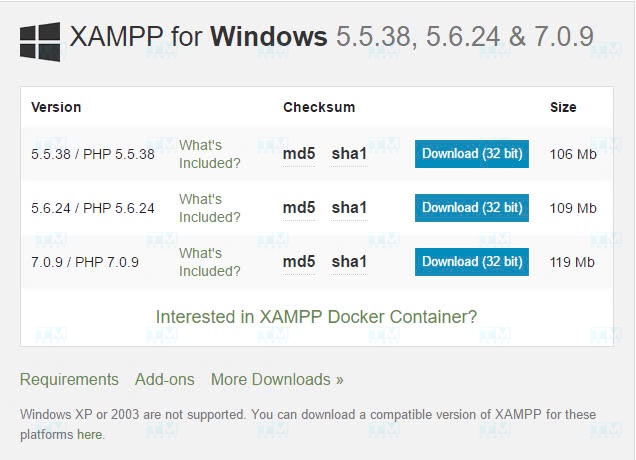
- XAMPP: XAMPP is an integrated tool that includes Apache, MySQL, PHP, and Perl, helping you set up localhost on your computer. XAMPP supports quick development environment setup, suitable for developing web applications using PHP and MySQL.
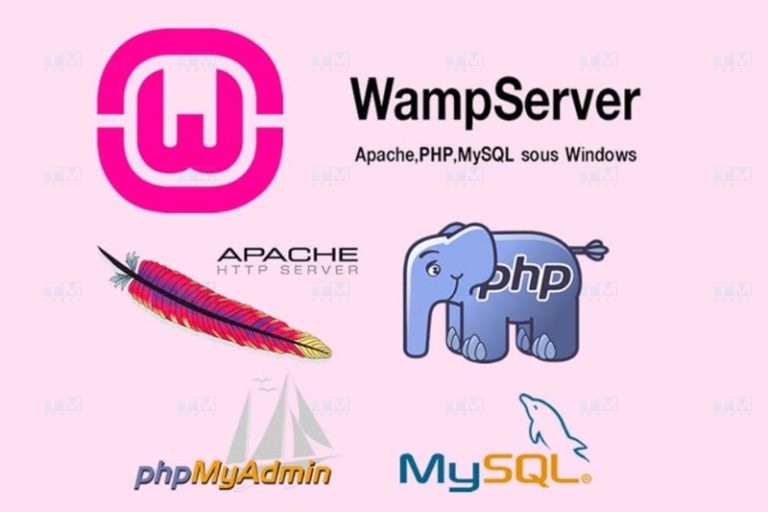
- WAMP: WAMP is a tool designed exclusively for Windows operating systems, including Apache, MySQL, and PHP. This tool makes localhost installation easy and allows running PHP code right on your computer. WAMP's user-friendly interface helps developers manage databases and server settings conveniently.
- MAMP: MAMP is a tool similar to WAMP but designed for macOS. With MAMP, users can install a localhost environment with Apache and MySQL, along with PHP or Python. MAMP lets you run applications on localhost for development and testing before deploying to a production environment.
- Local by Flywheel: Local by Flywheel is a tool specifically designed for developing WordPress websites on localhost. This tool helps you easily set up WordPress websites in just a few steps, test plugins and themes, and optimize websites before going live.
- Docker: Docker is a tool that allows you to create a localhost environment using containers. Docker enables running the services needed for an application flexibly, from databases to API services. Docker is suitable for complex projects that require multiple services running simultaneously.
- Ngrok: Ngrok is a tool that creates a tunnel from localhost to the internet, allowing you to share your localhost with others. This is particularly useful when you want to demo an application for clients or colleagues without deploying to a server.
Localhost support tools like those above help you set up and manage your development environment easily. When you understand what localhost is and use these tools effectively, you will save time and optimize your application development workflow.
Guide to Installing Localhost on Your Computer
To use localhost, you need to install a local web development environment on your computer. There are many ways to do this, but we will focus on three popular methods: XAMPP, WampServer, and AppServ.
Preparation Steps Before Installation
Before starting the installation, make sure you have completed the following steps:
- Check the system requirements of the software you plan to install.
- Close all running applications on your computer.
- Temporarily disable antivirus software to avoid conflicts during installation.
- Ensure you have administrator privileges on your computer.
- Download the latest version of the software from the official website.
Guide to Installing Localhost with XAMPP on Windows
XAMPP is a popular software package that includes Apache, MySQL, PHP, and Perl. Here is how to install it:
- Download XAMPP from the official website: https://www.apachefriends.org/index.html
- Run the downloaded installation file.
- If Windows Defender or User Account Control pops up, allow the application to run.
- In the installation window, select the components you want to install. If unsure, leave the defaults.
- Choose the installation directory (default is C:\xampp).
- Click "Next" and wait for the installation to complete.
- After installation, open the XAMPP Control Panel.
- Start Apache and MySQL by clicking the "Start" button next to each service.
Open the browser and type "localhost" into the address bar. If you see the XAMPP welcome page, the installation was successful.
Guide to Installing Localhost with WampServer on Windows
WampServer is a web development environment for Windows, including Apache2, PHP, and MySQL. Here are the installation steps:
- Download WampServer from the official site: http://www.wampserver.com/en/
- Run the downloaded installation file.
- Select the installation language and click "OK".
- Read and accept the license agreement.
- Choose the installation directory (default is C:\wamp64).
- Select additional tasks if needed (such as creating a desktop shortcut).
- Choose the default browser for WampServer.
- Click "Install" and wait for the installation to complete.
- After installation, launch WampServer.
- Check the WampServer icon in the system tray. If it turns green, all services are running successfully.
- Open the browser and type "localhost" to verify.
Guide to Installing Localhost with AppServ
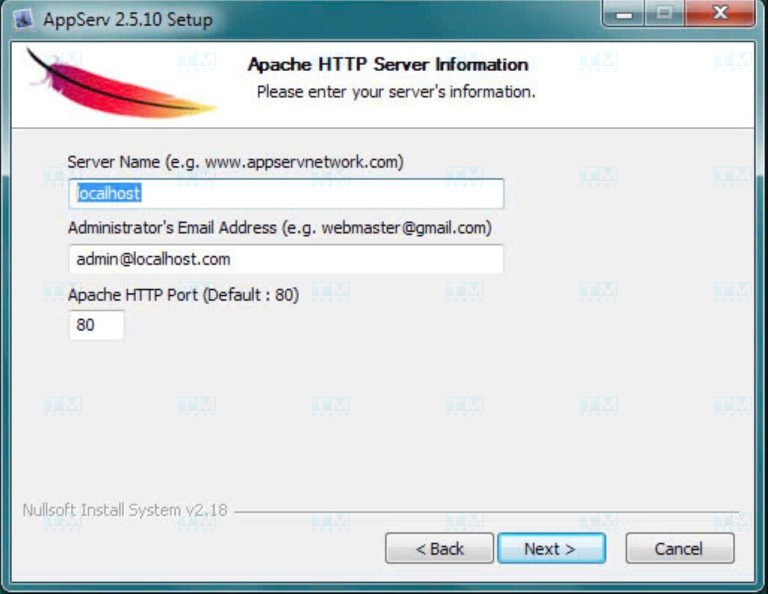
AppServ is an integrated software package for Windows that includes Apache, PHP, MySQL, and phpMyAdmin. Here is how to install it:
- Download AppServ from the official site: https://www.appserv.org/en/download/
- Run the downloaded installation file.
- Select the installation language and click "OK".
- Read and accept the license agreement.
- Choose the installation directory (default is C:\AppServ).
- Select the components you want to install.
- Configure the server name, admin email, and port for Apache.
- Set the root password for MySQL.
- Click "Install" and wait for the installation to complete.
- After installation, restart your computer.
- Open the browser and type "localhost" to verify the installation.
What is Kernel? An Introduction to the Kernel in Operating Systems
With any of these methods, you can set up a localhost environment on your Windows computer. Choose the method that best suits your needs and experience.
Common Applications of Localhost
Below are the common applications of localhost:
Web Application Development and Testing
Localhost is an ideal environment for developing and testing websites and web applications. Developers can use software like XAMPP, WAMP, or MAMP to create localhost, enabling them to run source code directly on their computers. This helps check features, detect bugs, and make necessary adjustments before deploying the application to a production server.
Database Testing
Localhost allows developers to set up and manage databases directly on their computers. With tools like MySQL or PostgreSQL, users can create, delete, and modify data without connecting to a remote server, saving time and ensuring security during development.
Running Virtual Environments for Learning and Research
New developers or those who want to explore new technologies can use localhost to experiment with frameworks, programming languages, or content management systems like WordPress and Joomla. The localhost environment helps learners become familiar with and practice technologies without risking damage to the main system.
Building and Testing APIs
Localhost allows you to build and test APIs before making them public on the internet. This is very useful for checking API compatibility with other services, ensuring data and functionalities work correctly.
Mobile Application Development and Testing
Localhost is also used for testing mobile applications. Developers can create a localhost on their computer and connect mobile applications to this server to check features, response speed, and data processing, making mobile application development simpler and more convenient.
These applications are the common reasons why localhost is an indispensable tool for developers. Localhost is not only an effective testing environment but also a useful tool for learning and research for many people.
Comparison Between 127.0.0.1 and Localhost
Although 127.0.0.1 and localhost are often used interchangeably, there are some subtle differences between them:
| Aspect | 127.0.0.1 | localhost |
|---|---|---|
| Definition | Specific IP address for loopback in IPv4 | Domain name that resolves to the loopback IP address |
| Designation | Always points to the local machine | Usually resolves to 127.0.0.1, but can be configured differently |
| Access method | Direct IP access, no DNS resolution needed | Requires DNS resolution |
| Speed | Usually slightly faster | May be slightly slower due to DNS resolution |
| Application | Used in configuration files that require a specific IP | Commonly used in URLs and web application development |
| Memorability | Harder to remember | Easy to remember and read |
| Customizability | Cannot be changed, always the standard loopback address | Can be customized in the hosts file |
| Configuration | Available by default, no additional configuration needed | Can be configured to point to other IPs |
| Flexibility | Limited | Allows creating multiple different local domain names |
Although in most cases, using 127.0.0.1 or localhost makes no significant difference, understanding these differences can help you in specific situations such as network debugging, server configuration, or complex application development.
Should You Use Localhost?
Using localhost offers many benefits, but there are also some limitations to consider. Let's examine the pros and cons:
Advantages:
- Rapid development: Localhost allows you to see changes immediately without uploading to a remote server.
- Security: Developing on localhost helps protect code and sensitive data from external threats.
- No internet dependency: You can work without an internet connection, very useful when traveling or in areas with poor connectivity.
- Resource savings: No bandwidth needed for uploading/downloading from remote servers.
- Controlled environment: You have full control over the development environment, easily configurable to your needs.
Disadvantages:
- Differences from production environment: The localhost environment can differ significantly from a production server, leading to unforeseen issues.
- Testing limitations: Some features like SSL, load balancing, or third-party services may be difficult to simulate accurately on localhost.
- Difficulty in team collaboration: Sharing a development version with other team members can be more complicated.
- Installation and configuration: Setting up a local development environment can take time and sometimes be challenging, especially for beginners.
- Performance limitations: Localhost cannot accurately simulate the performance of an actual server, especially for high-traffic applications.
Despite some limitations, using localhost remains an important part of the web development workflow. It provides a safe, fast environment for initial development and testing. However, it is important to combine localhost development with testing on production-like environments to ensure the application works well in all situations.

Common Issues When Using Localhost
Below are the common issues when using localhost and how to resolve them.
Unable to Connect to Localhost
Sometimes, you may encounter errors that prevent you from accessing localhost. The cause could be that the server software (such as Apache, Nginx) is not running or the firewall is blocking it. To fix this, check the server configuration and make sure the firewall is not blocking the connection port.
What is Cloud VPS? Pros, Cons, and How to Create a Cloud VPS
Port Conflicts
Localhost typically runs on default port 80 or 8080, but sometimes other applications also use these ports, causing conflicts. To resolve this, you can change the port for the localhost server by editing the server's configuration file, for example, the httpd.conf file in Apache.
Slow Performance Due to Insufficient Resources
If your computer is not powerful enough, running a server on localhost may cause the machine to run slowly or freeze. To improve this, ensure your computer has sufficient RAM and CPU, and close unnecessary applications to free up resources.
Permission Errors
When configuring localhost, some files or directories may not have the proper access permissions, causing permission errors. To fix this, you need to reset the access permissions for these files or run the server with admin privileges if necessary.
Incorrect Configuration
If the server or supporting services like PHP, MySQL are not configured correctly, you may encounter errors when running applications on localhost. Carefully checking the configuration files and ensuring they are set up correctly will help avoid these errors.
Security Issues
Although localhost primarily connects internally, when using third-party software or sharing the local network, security risks may arise. Make sure to only open ports when necessary and install security software to minimize risks.
Overall, localhost is a useful tool but can encounter some issues. Being aware of these issues helps users prepare and resolve them quickly, ensuring the localhost environment runs stably for application development and testing.
Frequently Asked Questions About Localhost
How to Connect to Localhost?
To connect to localhost, simply open your web browser and enter one of the following addresses into the address bar:
http://localhost http://127.0.0.1 If your web server is running on a port other than the default port 80, you need to specify that port, for example:
http://localhost:8080 http://127.0.0.1:3000 Make sure that a web server (such as Apache, Nginx) is running on your computer before trying to connect.
Is Localhost a Web Server?
Localhost is not a web server. It is simply a special domain name used to point to your local computer. For localhost to function as a web server, you need to install and run web server software like Apache, Nginx, or IIS on your computer.
When you access "localhost" in the browser, the request is sent to the web server running on your computer, and this web server will process the request and return the corresponding content.
What Do Localhost:8080 and Localhost:8888 Mean?
Localhost:8080 and localhost:8888 refer to accessing localhost through specific ports:
Localhost:8080: This is a popular port used by many web servers and web applications, especially in development environments. For example, Apache Tomcat uses port 8080 by default. Localhost:8888: This port is commonly used by certain specific applications. For example, Jupyter Notebook uses port 8888 by default. Using different ports allows you to run multiple web services simultaneously on your computer without conflicts.
Does Localhost Work Without an Internet Connection?
Yes, localhost works completely independently of internet connectivity. Since localhost points to your computer, it does not need an external network connection to function. This makes localhost a useful tool for offline development and testing.
However, if your application needs to access online resources (like external APIs or CDNs), those parts will not work without an internet connection.

Role of Localhost/htdocs and localhost/htdocs
Localhost/htdocs and localhost/htdocs both refer to the root directory of the web server on your local machine:
- Localhost/htdocs: This is the URL you type into the browser to access content in the web server's htdocs directory.
- localhost/htdocs: This is the directory path on your file system where web files are stored. The htdocs directory (short for "hypertext documents") is typically the default root directory in Apache configurations. Files placed in this directory will be accessible through the web server. For example, if you have an index.html file in htdocs, you can access it by typing http://localhost/index.html into the browser.
What is a Local Server?
A Local Server, also known as a Development Server, is a web server that runs on your personal computer rather than on a remote server. It creates an environment similar to a real web server, allowing you to develop, test, and run web applications without pushing code to an online server.
The benefits of using a Local Server include:
- Faster and easier development
- No internet connection needed to work
- Higher security since everything is on the local machine
- Easy configuration and environment customization
Popular software for creating Local Servers includes XAMPP, WampServer, MAMP (for Mac), and integrated tools in modern IDEs.
Conclusion: Localhost is an indispensable tool in the web development workflow, helping developers build and test applications directly on their personal computers without needing an internet connection or renting hosting. Choosing the right localhost tool such as XAMPP, WAMP, MAMP, or Docker will help optimize the development process and ensure applications run stably before deploying to a production environment.