






2FA (Two-Factor Authentication) is a security method that requires two independent authentication factors to access an account. This article explains in detail how it works, compares different 2FA methods, and provides step-by-step instructions for setting it up on Facebook, Gmail, and Outlook.
High-Speed Proxy - Ready to Try?
ALGO Proxy offers residential, datacenter & 4G proxies in 195+ countries
In this article, we will explore what 2FA is, how it works, its advantages and disadvantages, and how to set up 2FA on popular platforms. You will understand why 2FA is so important and how to apply it to effectively protect your online accounts.
Overview of 2FA
Before diving into the details, let's first understand the basic concepts behind 2FA, 2FA codes, and how this security method works.
What is 2FA?
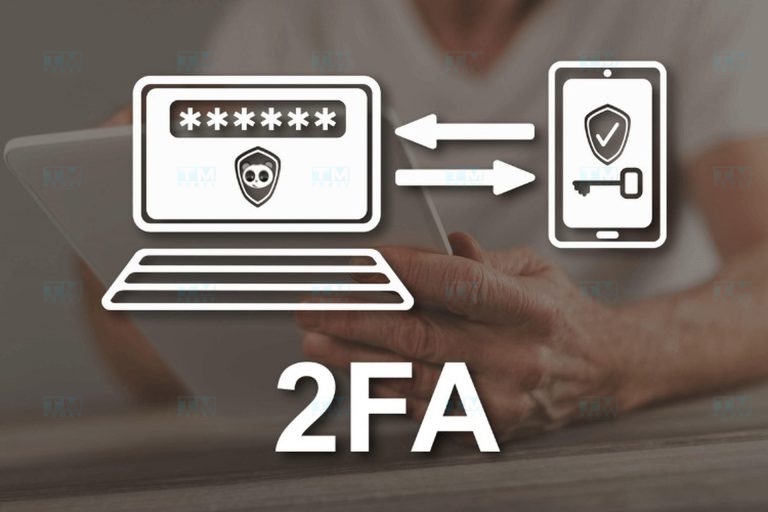
2FA, short for Two-Factor Authentication, is an enhanced security method that verifies a user's identity through two different authentication steps. Instead of relying on a single password, 2FA requires users to provide two independent types of credentials to access an account or system.
The main purpose of 2FA is to create an additional layer of protection, making unauthorized access to accounts significantly more difficult, even if a password has been compromised. By requiring a second factor, 2FA ensures that even if an attacker obtains your password, they still cannot access your account without the second factor.
What is a 2FA code?
A 2FA code is a unique string of characters, typically a sequence of numbers, generated during the two-factor authentication process. These codes usually have a short lifespan (typically 30 seconds to a few minutes) and serve as an additional security layer beyond the standard password.
Characteristics of 2FA codes:
- Typically 6 to 8 characters long
- May include both letters and numbers
- Have a short validity period for enhanced security
- Generated using special algorithms to ensure uniqueness
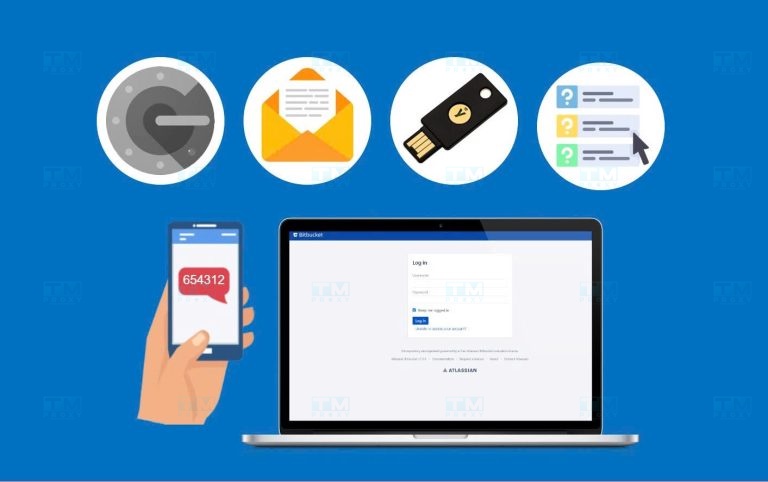
2FA codes can be delivered through various channels:
- SMS: Sent directly to the registered mobile phone number
- Email: Sent to a backup email address
- Authenticator apps: Such as Google Authenticator, Authy, or Microsoft Authenticator
- Push notifications: Sent directly to the mobile device
What is two-step verification and how does it work?
Two-step verification is a term synonymous with 2FA. It works by requiring users to provide two different authentication factors:
- First factor: Typically something you know, such as a password or PIN.
- Second factor: This can be:
- Something you have: such as a mobile phone or physical security device.
- Something you are: such as a fingerprint or facial recognition.
The two-step verification process typically works as follows:
- The user enters their username and password as usual.
- The system verifies the password and requests a second factor.
- The user provides the second factor (e.g., entering a code from an authenticator app).
- The system verifies the second factor and grants access if both factors are correct.
By using two independent factors, two-step verification creates a robust security barrier against unauthorized access attempts.
Who should use 2FA?
In practice, 2FA should be used by everyone who has an online account. However, certain groups of users should pay particular attention to implementing 2FA:
- Individual users: Protect personal and work email accounts. Secure social media accounts. Safeguard online banking accounts and digital wallets. Secure cloud storage services.
- Businesses and organizations: Protect sensitive data and intellectual property. Ensure the safety of internal management systems. Secure corporate email accounts. Strengthen security for financial transactions.
- Remote workers: Ensure safe remote access to company systems. Protect customer information when working outside the office. Prevent unauthorized access to company resources.
- Financial service users: Protect online banking accounts. Ensure the safety of electronic transactions. Secure credit card information.
- System administrators: Protect access to critical systems. Prevent cyberattacks targeting IT systems. Ensure the integrity of system data.
- Public figures and celebrities: Prevent identity theft and impersonation. Protect personal information from public scrutiny. Maintain control over their online presence.
- Software developers and engineers: Protect source code and intellectual property. Ensure the safety of code repositories. Prevent unauthorized access to development tools.
- Students and learners: Protect online learning accounts. Ensure the safety of research data. Secure personal information in educational environments.
In summary, anyone who cares about protecting their personal information and online data should use 2FA. In the digital age, implementing 2FA is not just an option but a necessary safeguard for every internet user.
How the 2FA security system works
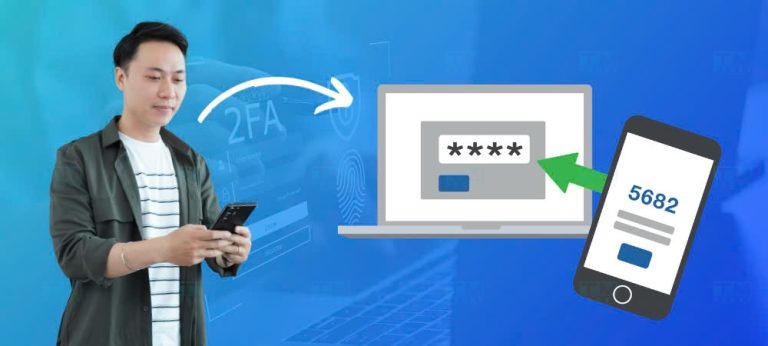
The 2FA security system operates through a structured process that ensures safe and effective user authentication. Here is a detailed look at how 2FA works:
- Standard login: The user navigates to the service's login page. They enter their username and password as usual. The system verifies the login credentials.
- Second authentication request: After successfully verifying the password, the system requests a second authentication factor. The user is notified that they need to provide the second factor.
- Generating the authentication code: The system generates a unique authentication code, typically a numeric sequence. This code is generated using special algorithms to ensure randomness and security.
- Sending or generating the code: Depending on the chosen 2FA method, the authentication code can be:
- Sent to the user's device via SMS or email.
- Generated by an authenticator app on the user's mobile device.
- Displayed on a dedicated hardware device.
- Entering the authentication code: The user receives the authentication code through their chosen method. They enter this code into the authentication field on the login page.
- Verification: The system checks whether the entered code matches the generated code. This process usually occurs in real time, ensuring timely authentication.
- Granting access: If the code matches, the user is granted access to the account. If the code does not match, access is denied and the user may be asked to try again.
- Logging and monitoring: The system records information about the login process, including failed attempts. Unusual login attempts may trigger security alerts.
- Session management: After successful authentication, the system creates and manages a login session. This session may have a limited duration, requiring re-authentication after a certain period.
- Device remembering option: Some 2FA systems allow users to "remember" trusted devices. On remembered devices, users can skip the second authentication step for a certain period.
This entire process takes just a few seconds, yet it significantly enhances the security of your account. By requiring two independent factors, 2FA ensures that even if one factor is compromised, the account remains protected by the other.
Common 2FA security methods available today
There are several different 2FA methods, each with its own strengths and weaknesses. Here is a detailed look at the most popular methods:
SMS authentication (text message)
This is the most common and easiest method to implement.
How it works:
- When logging in, the user receives an authentication code via SMS on their registered mobile phone.
- The user enters this code on the login page to complete the authentication process.
Advantages:
- Easy to use and familiar to most users.
- Does not require installing any additional apps.
- Works on almost all mobile phones, including basic feature phones.
Disadvantages:
- Vulnerable to SIM swapping attacks.
- Depends on mobile signal and may cause issues when traveling abroad.
- Not secure when using untrusted networks.
Mobile app authentication
This method uses dedicated authenticator apps such as Google Authenticator, Authy, or Microsoft Authenticator.
How it works:
- The app generates a unique authentication code that changes every 30 seconds.
- When logging in, the user opens the app and enters the current code on the login page.
Advantages:
- More secure than SMS since the codes are harder to intercept.
- Works even without an internet connection.
- Can be used for multiple accounts within a single app.
Disadvantages:
- Requires installing an additional app.
- May cause issues if the device is lost or replaced.
- Time synchronization between the server and the device is necessary.
Security Key authentication
Security Keys are compact hardware devices that typically connect via USB or NFC.
How it works:
- When logging in, the user plugs the device into their computer or taps it on their phone.
- The device generates a unique authentication code and sends it directly to the service.
Advantages:
- Provides the highest level of security.
- Effectively prevents phishing attacks.
- Does not require a battery or network connection.
Disadvantages:
- Requires purchasing a separate device.
- Can be inconvenient when using multiple different devices.
- If the key is lost, the recovery process can be complicated.
Recovery Code authentication
Recovery Codes are a set of backup codes generated when you first set up 2FA.
How it works:
- When setting up 2FA, the system generates a series of backup codes.
- The user stores these codes in a safe place.
- The codes are used when the primary 2FA method is unavailable.
Advantages:
- Provides a fallback option when other methods are unavailable.
- Does not require a device or network connection.
- Each code is single-use and new codes can be easily generated.
Disadvantages:
- Can be stolen if not stored securely.
- Easy to forget or lose if not managed carefully.
- Needs to be regenerated periodically to remain valid.
Advantages and disadvantages of 2FA
Like any security technology, 2FA has both strengths and weaknesses. Below are the key benefits and limitations of this method.
Advantages
- Enhanced security: 2FA provides an additional layer of protection, helping prevent unauthorized access even if the password is leaked. It significantly reduces the risk of account hacking compared to using a password alone.
- Reduced risk of identity theft: With 2FA, impersonating someone's identity becomes much more difficult. It protects personal and financial information from being stolen.
- Flexibility: There are multiple 2FA methods to choose from, suitable for different needs and desired security levels. Users can select the method that works best for them.
- Regulatory compliance: Many industries require 2FA to comply with security standards. It helps businesses meet security and privacy requirements.
- Detection of unauthorized access: 2FA can help quickly detect unauthorized access attempts. It provides timely alerts about suspicious activity.
- Increased customer trust: Using 2FA demonstrates a commitment to security, boosting customer confidence. It can be a competitive advantage in security-sensitive industries.
- Protection against brute-force attacks: 2FA renders brute-force attacks (trying many passwords) ineffective. Even if the password is guessed correctly, the attacker still needs the second factor.
- Better account recovery: In case of lost access, 2FA provides additional options for safely recovering the account.
Disadvantages
- More complex: The login process becomes more complex and time-consuming. It may frustrate users who are not comfortable with technology.
- Device dependency: If the phone or authentication device is lost, accessing the account can become difficult. It can be inconvenient when traveling or when the device runs out of battery.
- Cost: Some 2FA methods (such as Security Keys) require additional expense. Deploying 2FA in an enterprise can be costly in terms of both money and time.
- Compatibility issues: Not all services support 2FA or all 2FA methods. There may be difficulties when using older applications or services.
- Can be bypassed: In some cases, 2FA can be defeated by sophisticated attack techniques. Methods like SIM swapping can bypass SMS-based authentication.
- Complex recovery process: If access to both factors is lost, recovering the account can become complicated. It may lead to being locked out of the account for an extended period.
- Resistance to change: Some users may be reluctant to adopt 2FA because they do not want to change their habits. Training and guidance may be needed to help users become comfortable with the new system.
- Latency and reliability issues: Dependence on network connectivity can cause latency or reliability problems. In the event of a lost connection, users may be unable to access their accounts.

How to set up 2FA security on Facebook
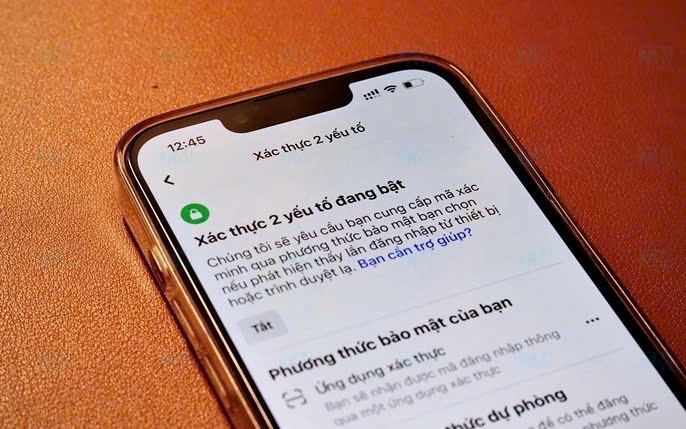
Facebook is one of the most popular social media platforms, and protecting your Facebook account is essential. Here is a detailed guide on how to set up 2FA on Facebook:
Setting up on the Facebook browser
- Log in to your Facebook account.
- Click the down arrow icon in the top-right corner and select "Settings & Privacy".
- Select "Settings".
- In the left menu, select "Security and Login".
- Scroll down to the "Use two-factor authentication" section and click "Edit".
- Choose the authentication method you want to use:
- Authenticator app
- Text message (SMS)
- Security key
- Follow the on-screen instructions to complete the setup.
Note: Facebook will provide you with backup codes. Save them in a safe place for use in case you cannot access your primary 2FA method.
Setting up on the Facebook app
- Open the Facebook app on your phone.
- Tap the menu icon (three horizontal lines).
- Scroll down and select "Settings & Privacy", then select "Settings".
- Select "Security and Login".
- Tap "Use two-factor authentication".
- Choose the authentication method and follow the on-screen instructions.
After setup, every time you log in to Facebook from a new or unrecognized device, you will need to enter a 2FA code in addition to your regular password. This helps protect your account from unauthorized access, even if your password is leaked.
How to set up 2FA security on Gmail
Gmail is one of the most popular email services, and protecting your Gmail account is essential. Here is a detailed guide on how to set up 2FA on Gmail:
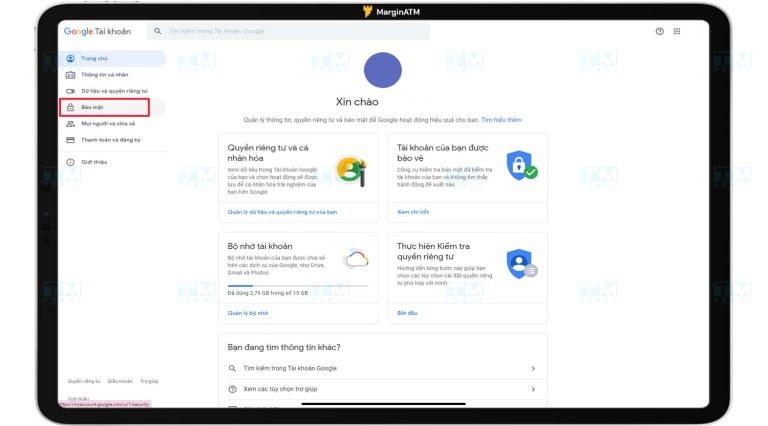
- Log in to your Google account.
- Click on the circular icon with your profile picture or the first letter of your name in the top-right corner.
- Select "Manage your Google Account".
- In the left menu, select "Security".
- Scroll down to the "Signing in to Google" section and click "2-Step Verification".
- Click "Get Started".
- Follow the on-screen steps to verify your identity.
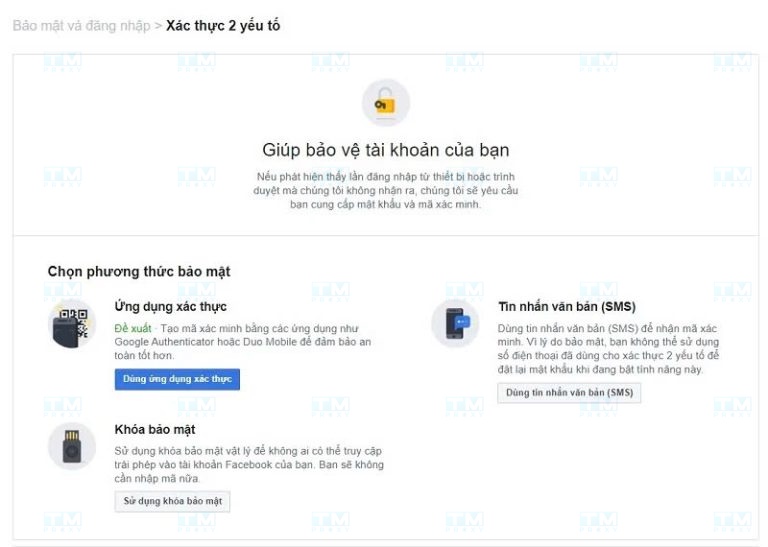
- Choose the authentication method you want to use:
- Google phone prompts
- Text message or voice call
- Authenticator app
- Security key
- Set up the chosen authentication method by following the instructions.
- After completing the setup, you will receive backup codes. Save them in a safe place.
Note: Google offers multiple 2FA options, including the "Google phone prompts" feature, which lets you simply tap a notification on your phone to authenticate instead of entering a code.
How to set up 2FA security on Outlook
Microsoft Outlook also offers 2FA to protect your email account. Here is how to set it up:
- Go to account.microsoft.com and log in to your account.
- Select "Security" from the top menu.
- Under "Advanced security", select "Add security".
- Click "Get Started" in the "2-step verification" section.
- Choose the authentication method you want to use:
- Microsoft Authenticator app
- Text message or voice call
- Follow the on-screen instructions to set up the chosen method.
- After completing the setup, you will be provided with backup codes. Save them carefully.
Note: Microsoft recommends using the Microsoft Authenticator app because it is more secure than SMS and offers a passwordless sign-in experience.
How to turn off 2FA security on your devices
Although it is not recommended, there are situations where you may need to turn off 2FA. Here are instructions for the most popular platforms:
Turning off on a computer
Facebook:
- Log in to Facebook
- Go to Settings > Security and Login
- Find the "Use two-factor authentication" section and select "Edit"
- Select "Turn Off"
Google:
- Log in to your Google account
- Go to the Security section
- Find "2-Step Verification" and select "Turn Off"
Microsoft:
- Log in to account.microsoft.com
- Go to the Security section
- Find "2-step verification" and select "Turn Off"
Turning off on a phone
Facebook app:
- Open the Facebook app
- Go to Menu > Settings & Privacy > Settings
- Select Security and Login
- Turn off "Use two-factor authentication"
Gmail on Android:
- Open the Gmail app
- Tap the menu icon > Settings
- Select your Google account
- Tap "Manage your Google Account"
- Go to the Security section and turn off "2-Step Verification"
Outlook on phone:
- Open the Outlook app
- Go to Settings > select your Microsoft account
- Tap "Manage your Microsoft Account"
- Go to the Security section and turn off "2-step verification"
Turning off on iPhone and iPad
iCloud and Apple ID:
- Go to Settings > [Your Name] > Password & Security
- Turn off "Two-Factor Authentication"
Other apps such as Facebook, Gmail, Outlook: Follow the same steps as on Android, but through the corresponding iOS app
Important note: Turning off 2FA will significantly reduce the security level of your account. Only do this if absolutely necessary, and re-enable it as soon as possible.
Conclusion: 2FA is an essential security layer that protects your online accounts from unauthorized access, even if your password is leaked. Enable 2FA on all your important accounts — prioritize using an Authenticator app or Security Key over SMS for the highest level of security.