






Setting up a proxy for Google Chrome helps protect your information, hide your IP, and bypass geo-restrictions. This article provides a detailed guide on configuring a proxy through Chrome's default settings and extensions, setting up a proxy on Firefox, and troubleshooting common issues.
High-Speed Proxy - Ready to Try?
ALGO Proxy offers residential, datacenter & 4G proxies in 195+ countries
Why Set Up a Proxy for Google Chrome?
Security and Privacy
One of the main reasons for using a proxy is to enhance security and protect privacy. A proxy hides your real IP address, making it impossible for websites to accurately determine your location or personal information. This is especially useful when accessing the internet from public Wi-Fi networks or when you want to protect your personal data from online surveillance.
Accessing Geo-Restricted Content
Another important benefit of using a proxy is the ability to bypass geographic restrictions. When content is blocked in a specific region, using a proxy from another country allows you to access restricted services or websites. For example, many online video platforms like Netflix, Hulu, or BBC iPlayer have content that can only be viewed in certain countries, and a proxy helps you overcome these limitations.
Faster Web Browsing
Although it doesn't always happen, in some cases a proxy can help improve browsing speed. This occurs when the proxy server stores cached copies of websites you frequently visit. Instead of requesting data from the original website, the proxy can serve content from its cache, reducing page load times.
Monitoring and Controlling Internet Access
Proxies are also used in organizations, businesses, and households to monitor and control internet access. Network administrators can configure proxies to block access to unwanted websites or monitor internet traffic to ensure information security. This also helps prevent employees from visiting entertainment websites during work hours.
Saving Bandwidth
Certain types of proxies, especially caching proxies, can help save bandwidth. They do this by temporarily storing copies of web pages. When a user visits a website already stored in the cache, the proxy serves the content without needing to reload it from the original server.
Anonymous Web Browsing
For those concerned about maintaining online anonymity, using a proxy is an effective method. When accessing the internet through a proxy, requests are sent from the proxy server's IP address instead of your computer, helping to protect your identity and making it more difficult to track users.
Managing Multiple Accounts
In some cases, users need to manage multiple online accounts on the same service or website. If a website limits the number of accounts that can log in from a single IP address, using a proxy allows users to access multiple accounts simultaneously without being restricted.
What is a Blade Server? Everything You Need to Know About Blade Servers
How to Set Up a Proxy for Google Chrome
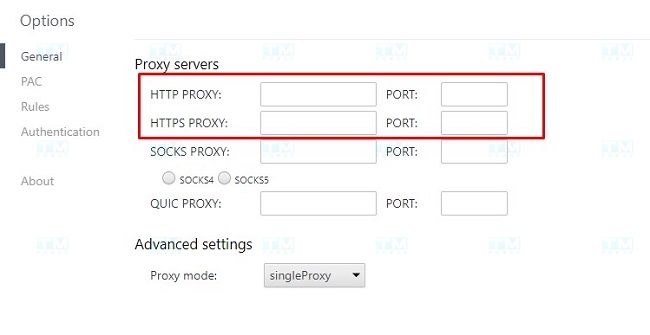
Google Chrome is one of the most popular browsers today and offers several ways to configure a proxy. In this section, we will walk you through step by step how to set up a proxy for Google Chrome.
First, you need to understand that there are two ways to set up a proxy for Google Chrome: through Chrome's default settings and using an extension. Each method has its own advantages and disadvantages.
Setting Up an HTTP Proxy Using Chrome's Default Settings
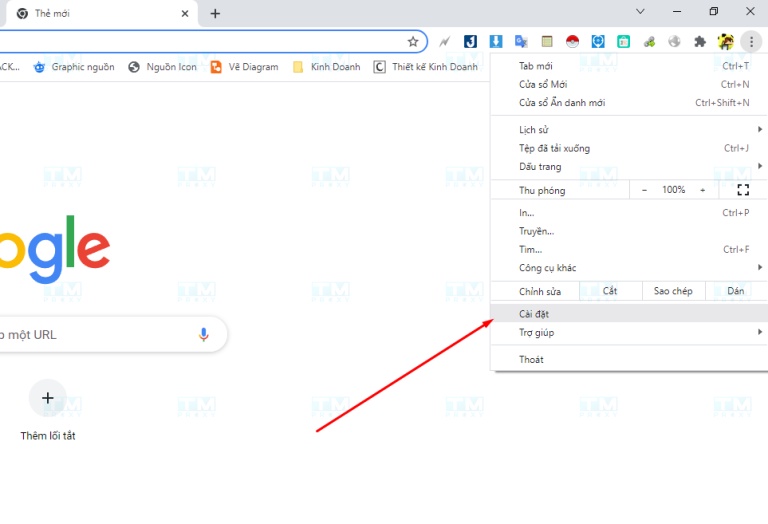
Step 1: The first step in setting up a proxy for Google Chrome is to open Chrome and navigate to Settings in the menu.
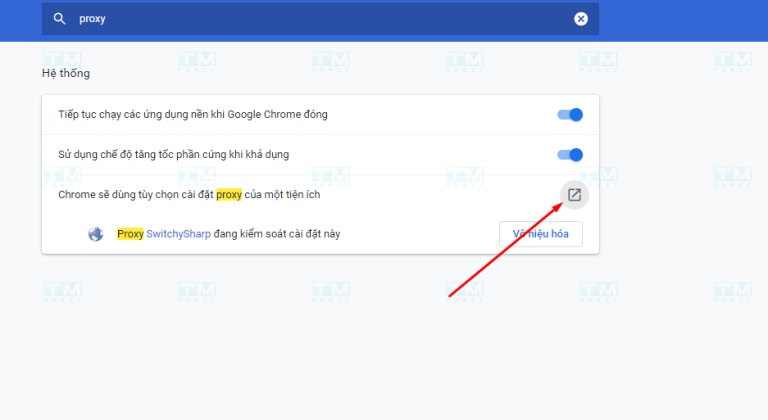
Step 2: In the search box, type "Proxy" to quickly filter proxy-related settings.
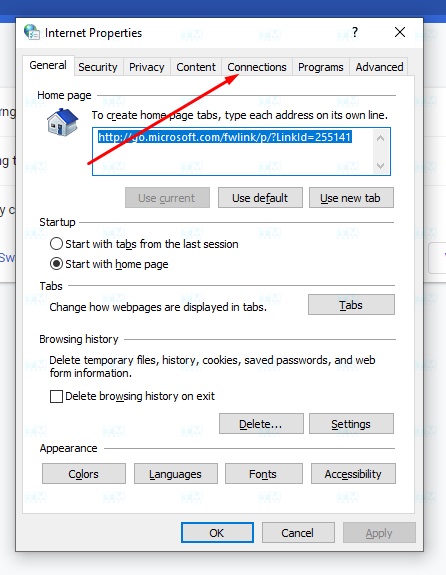
Step 3: A Windows Internet Options window will appear. Switch to the Connections tab.
Step 4: Select LAN Settings > check Use a proxy server for your LAN. Here, enter your HTTP Proxy information.
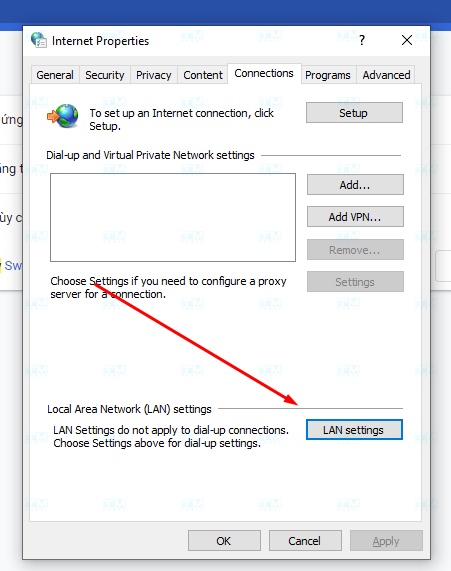
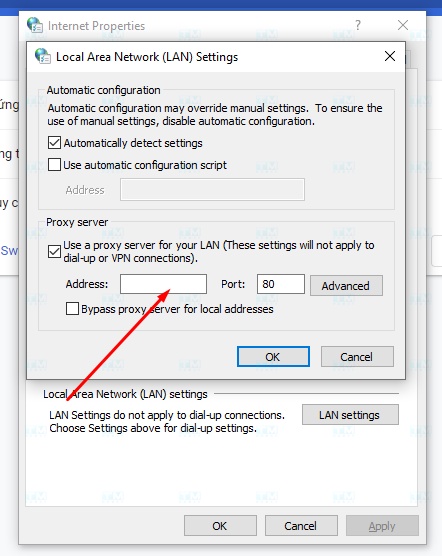
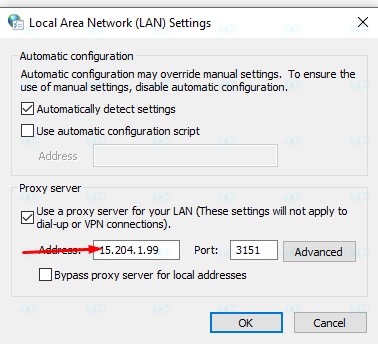
Note: If you don't see the username and password fields, you can skip this step. When you open the browser and load a page, the system will prompt you to enter this information later.
Step 5: Click OK to close the dialog boxes and try accessing Chrome again.
Note about setting up a proxy for Google Chrome: This operation will affect all applications on your computer that use an internet connection.
Setting Up an HTTP Proxy on Chrome Using an Extension
Extension link: https://chromewebstore.google.com/detail/proxy-switchysharp/dpplabbmogkhghncfbfdeeokoefdjegm?hl=vi&pli=1
Step 1: Go to the link above and click Add to Chrome to install the Proxy SwitchySharp extension.
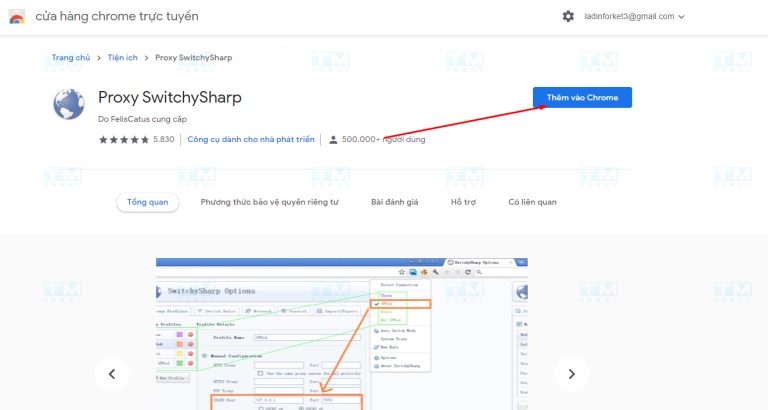
Step 2: After Chrome finishes installing automatically, a web page with the Proxy settings panel will appear.
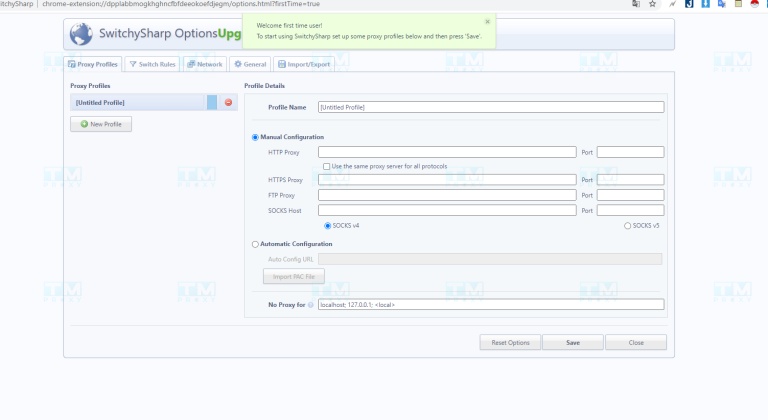
Step 3: Name your proxy profile and enter the Proxy details, including the IP and Port.
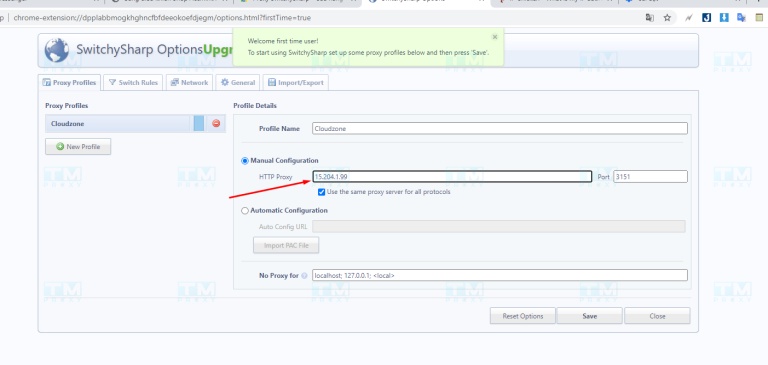
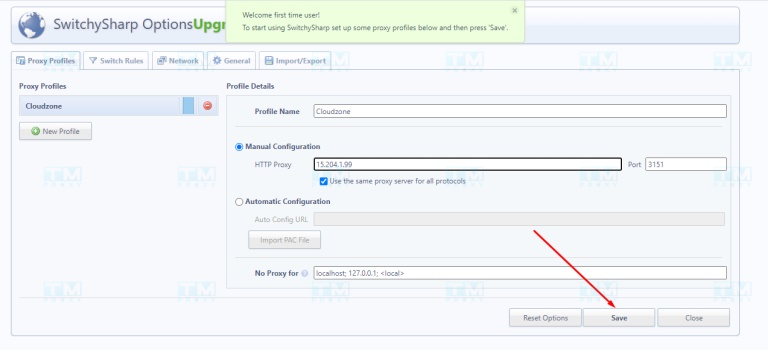
Step 4: Click Save to save the profile you just created.
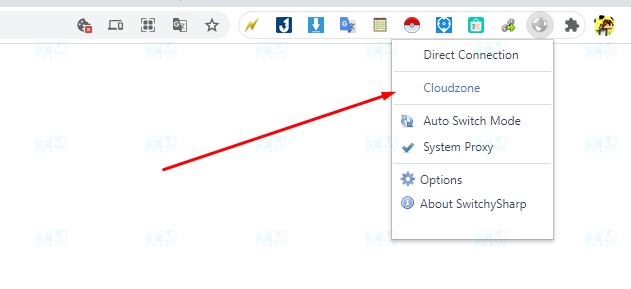
Step 5: Return to the web page, click the Proxy SwitchySharp icon on the extensions bar (to the right of the address bar) and select the connection profile you just created. For example: I named mine Cloudzone.
Step 6: Reload the web page to verify. Your IP address should change to the proxy's IP if the setup was successful.
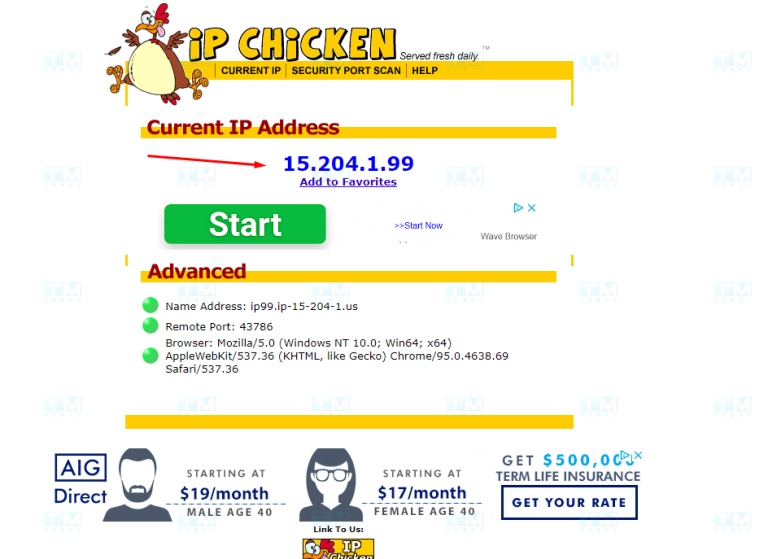
Note: If a username and password are required, Chrome will prompt you when you reload the page.
IP check page: You can visit https://ipchicken.com to check your current IP address.
How to Configure a Proxy on Firefox Browser
To get started, you need to download and install the Firefox browser from its official website, then update to the latest version. Configuring a proxy on Firefox is very simple and quick. In this article, we will guide you through the process on the Windows operating system.

Step 1: Open the Settings Menu
First, open the Firefox browser and navigate to the Settings menu.
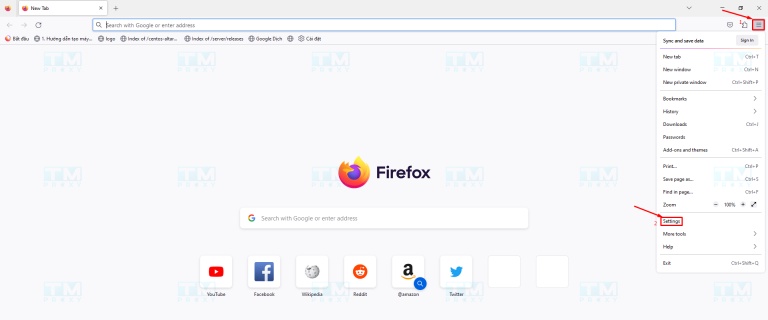
Step 2: Search for "Proxy"
In the search box of the Settings window, type the keyword "Proxy" and click the "Settings" button when the result appears.
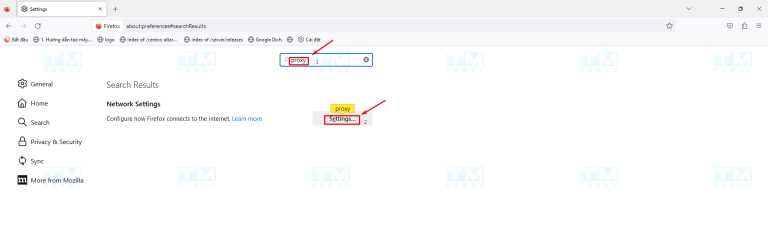
Step 3: Configure the Proxy Manually
Select "Manual Proxy Configuration" and enter the proxy parameters as shown in the illustration below, then click "OK" to save the settings.
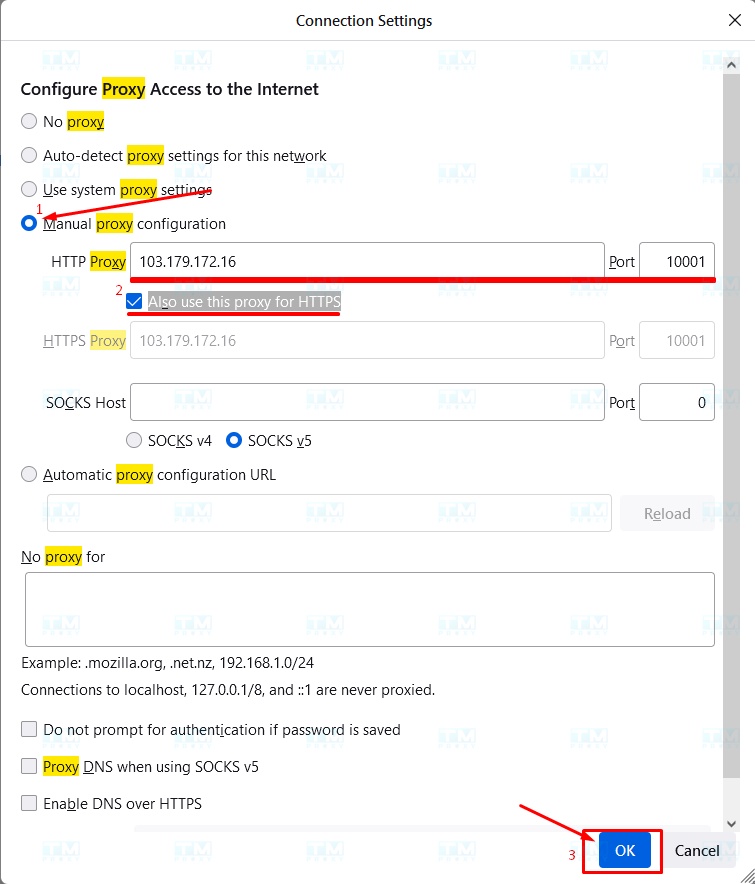
After completing the setup, visit the website https://www.iplocation.net/ in Firefox. You will be prompted to enter a username and password, which will be provided when you purchase or subscribe to the service.
Troubleshooting Tips for Proxies
During the process of setting up and using a proxy, you may encounter issues such as slow internet connection, inability to access certain websites, or connection errors. Here are some tips to help you resolve these problems.
- Re-check proxy settings: Ensure the proxy address, port, username, and password are configured correctly.
- Disable Chrome extensions that may interfere with the proxy: Extensions such as ad blockers or VPNs may conflict with proxy settings, so disable them if you are using any.
- Clear Chrome's cache: Clearing the cache helps restore browser settings and may resolve connection issues.
- Restart your computer: Shutting down and restarting your computer can help re-establish the internet connection and fix underlying issues.
- Reset Chrome settings: Resetting Chrome to its default settings helps fix incorrect configurations that may be causing problems.
- Uninstall and reinstall Chrome: If the above measures are ineffective, uninstalling and reinstalling Chrome can restore the browser and resolve connection issues.

Common Issues and Errors When Setting Up a Proxy in Chrome
When setting up a proxy in Chrome, you may encounter several common errors and issues. Below are descriptions and solutions for these problems.
Cannot connect to the proxy server: This error usually appears when the proxy settings or proxy address are incorrect. To fix it, re-check the proxy settings and verify that the proxy address is correct. If everything is correct, try restarting the browser or resetting Chrome's proxy settings. Cannot access certain websites: This error may be caused by a misconfigured proxy server. Check the proxy settings in Chrome to ensure they are set up correctly. If the settings are correct and the proxy is working properly, try clearing the DNS cache and browser cache. Proxy authentication error: This error occurs when the proxy requires authentication but the login credentials are incorrect. To resolve the issue, ensure you are using the correct username and password when authenticating with the proxy server.

Why Not Use a Proxy Manager to Set Up Chrome Proxy?
Setting up a proxy through a proxy manager is much simpler and more efficient than the manual method on Chrome, thanks to the tool's ability to optimize the process. A proxy manager automatically configures and sets up each proxy server, allowing users to easily add, remove, or switch between different proxies while managing all settings in a user-friendly interface. Furthermore, the tool ensures that all proxies operate reliably and provides advanced features, such as the ability to assign specific IP addresses for individual websites. This not only makes proxy management more convenient but also ensures users have the smoothest and most efficient browsing experience possible.
What Can Happen If You Don't Use a Chrome Proxy?
If you don't use a proxy, your real IP address will be exposed to the websites and services you visit. This can lead to several serious issues you may not have anticipated.
- Increased risk of malware and virus infections: Without a Chrome proxy, your computer can be easily attacked by malware, viruses, and other threats, putting your personal data at risk.
- Personal information leaks: Without a Chrome proxy, your information can be tracked by websites and companies. This may include your IP address, personal details, and browsing history.
- Data snooping: Without a Chrome proxy, your data is vulnerable to monitoring and collection by third-party companies or hackers, threatening your privacy.
- Unable to bypass censorship: Without a Chrome proxy, you may be restricted from accessing websites blocked in your country or region.
- Reduced privacy: Without a Chrome proxy, ISPs, government agencies, and other organizations can easily monitor your browsing activity, making it harder to protect your online privacy.
What is IIS? Advantages, Installation and Configuration of IIS Server in Detail
The collection of personal user data by companies through their terms of service can have far-reaching consequences. Through data collection, companies can gain a better understanding of customers' habits, preferences, and shopping behaviors. This data helps them optimize marketing strategies, personalize services, and develop new products and services.
The collected information also assists companies in making decisions about pricing, product distribution strategies, and other business activities. However, the collection and use of personal data also raises privacy concerns. Companies must ensure that data collection is carried out safely and responsibly, and users have the right to decide how their data is used.
Additionally, companies must have safeguards in place to prevent misuse or improper sharing of data, or they will face legal consequences and reputational damage.
However, the abuse and leaking of personal data are becoming increasingly common. As more user data is collected, the risk of data breaches and abuse grows. Reports of data breaches and the use of third-party applications to steal user information are on the rise.
Therefore, protecting user data has become extremely important, requiring additional security measures such as encryption, two-factor authentication, and monitoring access to user data to ensure safety.
How a Chrome Proxy Helps Protect You
Setting up a proxy in Chrome can help protect your privacy by hiding your IP address and encrypting data while browsing. This prevents third parties from tracking your online activity and keeps you anonymous on the internet.
A Chrome proxy also helps protect you from dangerous websites, preventing them from collecting your personal information and safeguarding your privacy.
In summary, setting up a proxy in Chrome is a straightforward process. When you have the right information, you can connect securely right away.
{{< test-result title="So sanh cach cai Proxy cho Chrome" headers="Tieu chi|Cai dat mac dinh|Extension SwitchySharp" row1="Pham vi|Tat ca ung dung|Chi Chrome" row2="Do kho|Trung binh|De" row3="Chuyen doi nhanh|Khong|Co" row4="Quan ly nhieu proxy|Khong|Co" row5="Can cai them|Khong|Co (extension)" />}}
Conclusion: Setting up a proxy for Google Chrome helps protect your information, hide your real IP, and bypass geo-restrictions. You can set it up through default settings (affecting the entire system) or the SwitchySharp extension (affecting only Chrome). Check your IP after setup and contact support if you encounter any issues.