





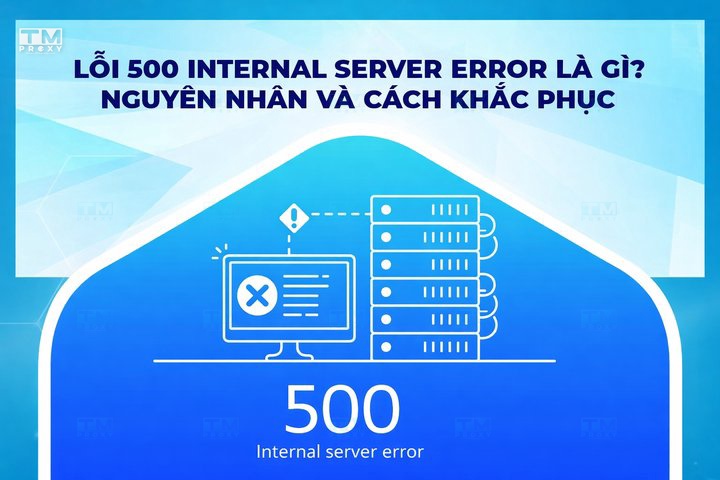
500 Internal Server Error is a common HTTP error code that occurs when the server cannot process a request. This article explains the causes of a 500 error, provides troubleshooting steps from both the server and user perspectives, and covers related errors 501 and 502.
High-Speed Proxy - Ready to Try?
ALGO Proxy offers residential, datacenter & 4G proxies in 195+ countries
What is a 500 Internal Server Error?
A 500 Internal Server Error is an HTTP status code that tells the user a website cannot be accessed due to an internal server issue. This means the server received the request from the user's browser but was unable to process and fulfill it for some reason.
When visiting a website, if you see the message "500 Internal Server Error," it means the website is experiencing a technical issue.
The 500 Internal Server Error can appear in various forms such as: "500 Internal Server Error," "500 Error," "HTTP Error 500," "500. That's an error," "Temporary Error (500)," or simply "500." The way the error is displayed may vary depending on the website's configuration. Some sites even use humorous images to present this error, helping to ease user frustration when encountering the issue.
In summary, a 500 Internal Server Error is a generic error with HTTP status code 500. It occurs when the web server you are trying to access encounters a problem and cannot display any content. Instead of the normal interface, the server sends a 500 error page to the browser and displays it on your screen.
How to Fix a 500 Internal Server Error
To fix a 500 Internal Server Error, you need to identify the root cause and apply the corresponding fix on the server or web application. Here are some common troubleshooting steps:
- Check the website code: Server administrators should review the website code to detect errors. If the issue originates from the code, the web developer needs to inspect and fix it.
- Check server performance: If the error is caused by server overload, you should upgrade resources to handle the traffic volume.
- Check security software: If the 500 error appears because security software is blocking requests, you need to reconfigure or temporarily disable the software.
- Check the .htaccess file: A 500 error can be caused by a corrupted .htaccess file. You can inspect this file or temporarily remove it to see if the error is resolved.
- Check the error log: If you have access to the server's error log, review it to find the root cause. The information in the log will help you pinpoint the issue.
- Check plugins or themes: If you are using WordPress, the error may be caused by conflicts between plugins or themes. Try disabling all plugins and switching to the default theme to test.
- Update the PHP version: An outdated or incompatible PHP version can cause a 500 error. You can update to the latest PHP version and recheck.
- Contact the service provider: If you cannot find the cause, contact your hosting provider for further investigation and support.
- Reload or refresh the page: A 500 Internal Server Error is often just a temporary server issue. To fix it, you can reload or refresh (press F5) the page you are trying to access.
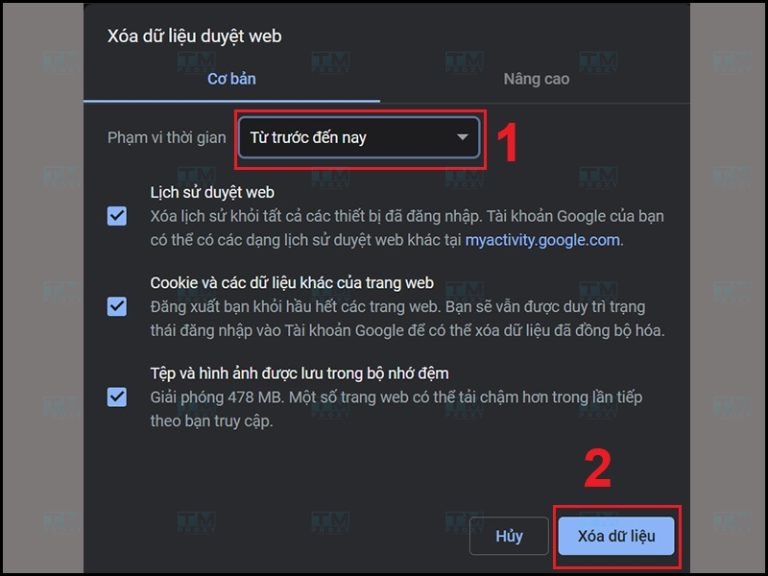
- Clear browser cache: Issues with the website's cached data can be the cause of a 500 error. In this case, clearing the browser cache is the simplest way to resolve it.
- Clear browser cookies: Sometimes, a 500 error can be fixed by clearing browser cookies. After clearing them, restart the browser and visit the website again.
What is DHCP? An Overview of the IP Address Assignment Protocol
Causes of a 500 Internal Server Error
When a website encounters an error, there is usually a specific message about the issue. However, a 500 Internal Server Error is a generic error that does not specify the cause. Here are some common reasons for this error:
- Corrupted .htaccess file
- Plugin conflicts
- PHP memory limit exceeded
- Issues with web server software such as Apache or PHP
- Server overload due to too many simultaneous visitors
Understanding these causes will help you take a more effective approach to troubleshooting 500 Internal Server Errors.

Understanding the 501 Not Implemented Error
Although less common than the 500 Internal Server Error, the 501 Not Implemented error can also cause significant problems for websites.
What is a 501 Not Implemented Error?
A 501 Not Implemented error is an HTTP response code indicating that the server does not support the HTTP method requested by the browser or has not been properly configured to handle the request. Some of the main causes of a 501 Not Implemented error include:
- Unsupported HTTP version: The server does not support the HTTP version requested by the client. For example, if the client requests HTTP/2 but the server only supports HTTP/1.1, a 501 error will occur.
- Unsupported request method: The server does not support the method in the client's request. For instance, if the client requests the TRACE method but the server does not support it, a 501 error will appear.
- Server cannot fulfill the request: The server lacks the necessary plugin or extension to process the client's request.
- Server configuration error: Incorrect server configuration, such as not accepting POST or GET requests, can lead to a 501 error.
- Internal server error: Some internal server errors can produce a 501 error code if the server cannot process the client's request.
- Network error: Network issues can prevent the client's request from reaching the server, resulting in a 501 error.
How to Fix a 501 Not Implemented Error
Here are troubleshooting approaches depending on the cause:
- Missing required plugins or extensions on the server: If the server does not support the client's request, add the necessary plugins or extensions. If the error is related to server configuration, adjust the settings or contact the system administrator for assistance.
- Temporarily disable browser plugins or extensions: If a 501 error appears on a specific website, try disabling browser plugins or extensions to see if they are the cause.
- Overloaded web server: Upgrade server resources such as RAM or disk space to increase capacity, or switch to a higher-performance service.
- Check the web server for errors: Inspect server settings, configuration, or maintenance to detect issues. Diagnostic tools can be used to identify the cause.
- Verify the URL: Ensure the entered URL is correct and valid, as an incorrect URL can also cause a 501 error.
- Update web server software version: Ensure the server software version supports the HTTP method requested by the client.
Understanding the 502 Bad Gateway Error
The 502 Bad Gateway error commonly occurs in complex server environments. Below are the causes of this error and the steps needed to fix it.
What is a 502 Bad Gateway Error?
A 502 Bad Gateway error is a common error when accessing a website. It occurs when an intermediary server cannot connect to the destination server to complete the user's request. Causes of a 502 Bad Gateway error include:
- Server error: This is the primary cause of a 502 error. When a server experiences technical problems or is overloaded, it cannot process requests and returns a 502 error code.
- Incorrect proxy configuration: A proxy server that is malfunctioning or incorrectly configured can cause errors when connecting to the server.
- Network transmission error: When the internet connection is interrupted or data transmission encounters errors, the server cannot process the request and returns a 502 error.
- DNS error: When the DNS server cannot resolve the requested domain name, it cannot connect to the destination server and returns a 502 error.
- Security software: Some security software may block incoming and outgoing requests to and from the server, leading to a 502 error.
- System configuration error: Incorrect system configuration or hardware issues can also cause a 502 error.
How to Fix a 502 Bad Gateway Error
To resolve a 502 Bad Gateway error, you can try the following steps:
- Reload the page: A 502 error may just be a temporary issue, so try reloading the web page to see if the error disappears.
- Check your network connection: Ensure your internet connection is stable and not experiencing issues.
- Flush cached DNS: Incorrectly cached DNS can cause a 502 error. To fix this, you can flush DNS. On Windows, open Command Prompt and type "ipconfig /flushdns," then press Enter. On MacOS, open Terminal and type "dscacheutil -flushcache."
- Disable CDN: If the CDN is incorrectly configured, try temporarily pausing the CDN and reloading the page to see if the error is resolved.
- Check the destination server: If the destination server is overloaded or down, contact the service provider for assistance.
- Check the proxy server: If using a proxy server, ensure the proxy is functioning properly. If not, try disabling the proxy or switching to a different one.
- Run the browser in Safe Mode: This mode runs the browser with default settings, without add-ons, extensions, or toolbars. If the error does not occur in Safe Mode, you can disable extensions to fix the issue.
- Clear cookies: If clearing the cache did not resolve the error, try clearing browser cookies to remove outdated files that may be causing the 502 error.
- Restart the browser: A 502 error may be caused by a browser issue. Restarting the browser is a simple way to resolve it.
- Try a different browser: If the 502 error only appears in one browser, try using a different browser to see if the error disappears.
Contact the service provider: If the steps above do not resolve the error, you should contact the service provider for further assistance.
How to Fix a 500 Internal Server Error from a User's Perspective
Although the 500 Internal Server Error is primarily a server-side issue, users can still take some steps to try to resolve the problem on their end.
Reload the Web Page
Sometimes, a 500 Internal Server Error is just temporary due to a momentary server problem. In this case, the simplest thing to do is reload the web page. You can do this by:
- Pressing the F5 key on your keyboard.
- Clicking the reload icon in your browser.
- Pressing Ctrl + R (Windows) or Command + R (Mac).
If reloading the page does not solve the problem, try other methods.
Clear Cache and Cookies
Outdated cache and cookies can cause conflicts that lead to a 500 Internal Server Error. Clearing them may help resolve the issue:
- Open your browser settings.
- Find the "Clear browsing data" section or similar.
- Select to clear cache and cookies.
- Reload the web page after clearing.
Handle Website Cache
If you are using a cache plugin or CDN service, you may need to clear the website cache:
- Log in to the website admin panel (if you have access).
- Find the cache clearing option in the cache plugin or CDN settings.
- Clear all website cache.
- Reload the web page and check if the error still appears.
Contact the Website Administrator
If you have tried all the methods above and the problem is still not resolved, the final step is to contact the website administrator. They have access to the server and can investigate the cause of the 500 Internal Server Error more deeply.
When contacting them, provide the following information:
- The exact URL of the page where you encountered the error.
- The time you encountered the error.
- The type of device and browser you are using.
- A screenshot of the error message (if available).
- A detailed description of what you were doing when the error appeared.
This information will help the website administrator identify and fix the issue more easily.
{{< test-result title="So sanh cac loi HTTP 5xx" headers="Ma loi|Ten|Nguyen nhan chinh|Cach xu ly" rows="500|Internal Server Error|Loi noi bo server (.htaccess, plugin, PHP)|Kiem tra log, .htaccess, tat plugin;501|Not Implemented|Server khong ho tro phuong thuc HTTP|Cap nhat server, cai extension;502|Bad Gateway|Proxy/gateway khong ket noi duoc server dich|Kiem tra proxy, DNS, tai lai trang" />}}
Conclusion: Errors 500, 501, and 502 are common challenges when operating a website. Understanding their causes and troubleshooting steps helps administrators resolve issues quickly. Users can try reloading the page, clearing cache/cookies, or contacting the administrator for support.