





IIS (Internet Information Services) is a powerful web server developed by Microsoft, widely used to host and manage web applications on the Windows platform. This article covers its features, installation and configuration.
High-Speed Proxy - Ready to Try?
ALGO Proxy offers residential, datacenter & 4G proxies in 195+ countries
What is IIS?
Internet Information Services is one of the most popular and powerful platforms for hosting and serving web applications and websites. IIS supports multiple protocols including HTTP, HTTPS, FTP, FTPS, SMTP and NNTP, meeting diverse needs for online content deployment and management.
With IIS, users can run applications built with ASP.NET, PHP, and other languages through extension modules. IIS integrates closely with the Microsoft ecosystem including Windows Server and .NET Framework, delivering high performance and strong security.
IIS also provides an easy-to-use graphical management interface (IIS Manager) for efficiently managing server settings and features.
How IIS Works
- Application initialization and management: IIS acts as an intermediary platform, receiving HTTP requests from web browsers and responding with data from the server.
- Processing modules: IIS has a modular structure including HTTP.sys — the system-level HTTP request manager that routes requests to appropriate applications through ISAPI or ASP.NET.
- Request processing pipeline: IIS uses a pipeline to process requests through authentication, encryption, application data processing and response delivery.
- Application hosting: IIS allows configuring application pools, each operating independently for enhanced security and stability.
- Security support: IIS provides SSL/TLS for connection encryption and authentication mechanisms like Windows Authentication or Basic Authentication.
How IIS Interacts with ASP.NET Core
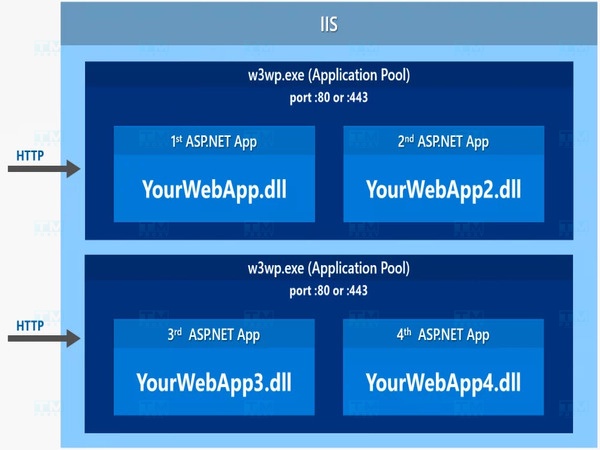
ASP.NET Core can be deployed and run on IIS, providing high performance and scalability.
- Hosting model: IIS uses the ASP.NET Core Module (ANCM) as an adapter. When HTTP requests arrive, IIS uses ANCM to start the application or forward requests to the running application.
- Kestrel and IIS: Kestrel is ASP.NET Core's built-in web server. IIS acts as a reverse proxy handling authentication, compression and SSL encryption, while Kestrel handles application logic.
- Resource management: Each ASP.NET Core application runs in a separate application pool for isolation and performance optimization.
- Logging and monitoring: IIS supports logging and monitoring ASP.NET Core applications through Application Insights.
Key Features of IIS
- Windows Server integration: IIS is built into Windows Server with PowerShell and Active Directory support.
- Strong security: Multiple authentication methods (Basic, Digest, Windows Authentication), SSL/TLS and IP Restrictions.
- Module extensibility: Modular architecture allows adding/removing features as needed (Logging Module, URL Rewrite, ARR).
- Easy management: IIS Manager provides an intuitive GUI; Logging and Diagnostics monitor server activity.
- Multi-language support: ASP.NET, PHP, Python, Node.js through extensions.
- FTP support: Integrated FTP server for content management and sharing.
IIS Use Cases

- Web application hosting: IIS processes HTTP requests and serves HTML, ASP.NET content or static files.
- Multi-technology support: ASP.NET, PHP, Node.js, REST APIs can all be deployed on IIS.
- Multiple website management: Multiple Site Hosting allows hosting multiple websites on a single server.
- SEO optimization: URL Rewrite module configures search engine-friendly URLs.
- Cloud integration: IIS can integrate with Microsoft Azure for cloud deployment.
IIS Server Versions
IIS has gone through many versions with significant improvements:
- IIS 1.0-3.0 (1995-1997): From basic web server to Active Server Pages (ASP) support.
- IIS 4.0-5.0 (1998-2000): MMC interface, SSL, Application Isolation and WebDAV.
- IIS 6.0 (2003): Worker Process Isolation Mode and Application Pools, significantly improved stability.
- IIS 7.0-7.5 (2008-2009): Completely new modular architecture, FTP 7.5 and Best Practices Analyzer.
- IIS 8.0-8.5 (2012-2013): Application Initialization, Logging Enhancements and dynamic configuration management.
- IIS 10.0 (2016+): HTTP/2 support, Windows Containers and overall performance improvements.
IIS Security Setup
Update IIS and OS: Always install the latest security patches via Windows Update.
Configure SSL/TLS: Install SSL certificates from trusted CAs, only allow TLS 1.2 or TLS 1.3. Disable SSL 3.0 and TLS 1.0.
Set minimum permissions: Use separate application accounts with low privileges instead of admin accounts.
Configure firewall: Only open necessary ports, set up firewall to filter traffic from trusted IPs.
Disable unused features: Turn off WebDAV or FTP if not needed to reduce attack surface.
Installing IIS via Server Manager
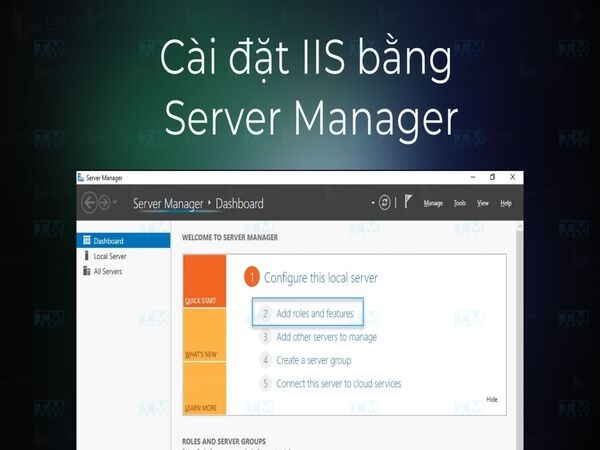
- Step 1: Log in to Windows Server with admin rights, open Server Manager.
- Step 2: Click Manage > Add Roles and Features, click Next.
- Step 3: Select Role-based or feature-based installation, click Next.
- Step 4: Select the target server, click Next.
- Step 5: Select Web Server (IIS), click Add Features > Next.
- Step 6: Select additional Features (if needed), click Next.
- Step 7: Select required role services (HTTP Logging, Request Filtering, ASP.NET...).
- Step 8: Confirm and click Install.
- Step 9: Complete, click Close.
Installing IIS via PowerShell

- Step 1: Open PowerShell as admin (Windows + X > Windows PowerShell Admin).
- Step 2: Check status:
Get-WindowsFeature -Name Web-Server - Step 3: Install:
Install-WindowsFeature -Name Web-Server -IncludeManagementTools - Step 4: Verify Success result.
- Step 5: Open browser, enter http://localhost to see the IIS Welcome page.
IIS vs Apache Comparison
| Criteria | IIS | Apache HTTP Server |
|---|---|---|
| OS | Primarily Windows | Cross-platform: Windows, Linux, macOS |
| Licensing | Built into Windows Server | Open-source, free |
| Performance | Optimized for Windows ecosystem, ASP.NET | Optimized for Linux |
| Extensibility | Microsoft and third-party modules | Thousands of community modules |
| Integration | .NET, MSSQL, Active Directory | MySQL, PHP, open-source technologies |
| Configuration | GUI (IIS Manager) or PowerShell | Text files (httpd.conf) |
| Security | Regular updates from Microsoft | Fast community patches |
| Cost | Windows Server license cost | Completely free |
Conclusion: IIS is a powerful web server deeply integrated with Windows, ideal for enterprises using the Microsoft ecosystem. With its intuitive management interface and strong security, IIS is a reliable solution for deploying web applications.