






Wireshark is the most popular open-source network analysis software, widely used by system administrators, security professionals, and IT students. This article explains what Wireshark is, how it works, its key features, and provides a detailed installation guide.
High-Speed Proxy - Ready to Try?
ALGO Proxy offers residential, datacenter & 4G proxies in 195+ countries
What is Wireshark?
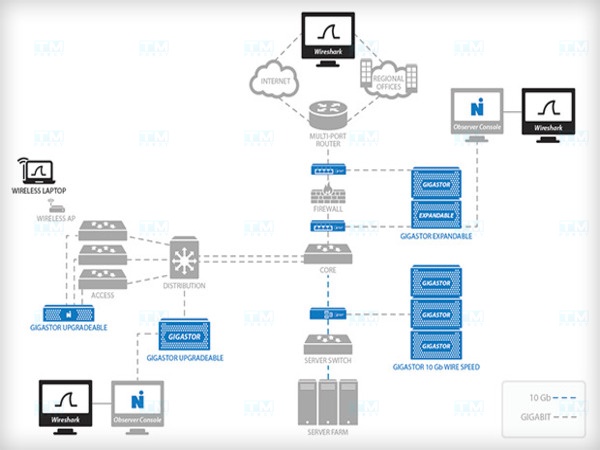
Wireshark is an open-source software designed for analyzing and monitoring network traffic. First developed in 1998, Wireshark allows users to capture and inspect data packets transmitted across a network in real time.
The software supports hundreds of network protocols (TCP, UDP, HTTP, DNS, SSL/TLS...) and displays data in layered format following the OSI model. Wireshark runs on Windows, macOS, and Linux, making it suitable for network administrators, cybersecurity experts, software developers, and students.
How Wireshark Works
Wireshark operates through three main phases:
Packet Capture: When launched, users select a network interface (Wi-Fi, Ethernet, Bluetooth). Wireshark starts "listening" and recording every data packet passing through that interface, including source address, destination address, protocol, and data content.
Packet Analysis: Wireshark analyzes each packet from the data link layer to the application layer in the OSI model. It identifies detailed data structures and checks for errors or anomalies in protocols.
Data Presentation: Packets are displayed chronologically through a graphical interface, organized into columns: sequence number, time, source/destination address, protocol, length, and detailed information.
Notable Features

- Real-time Capture: Continuously records packets from the selected network interface for instant monitoring.
- Multi-protocol Analysis: Supports hundreds of protocols from TCP, UDP, IP to HTTP, FTP, DNS, SSL/TLS, and specialized protocols.
- Powerful Filters: Display Filters allow searching packets by IP, protocol, port, or specific keywords.
- Multiple File Formats: Supports pcap, pcapng, and formats from other network analysis tools.
- SSL/TLS Decryption: Decrypts encrypted data when the appropriate key is available, useful for HTTPS analysis.
- Charts and Statistics: Protocol charts and time-based traffic graphs help detect abnormal trends.
- Color Coding: Distinguishes different packet types with customizable colors.
Use Cases for Wireshark

Network Troubleshooting: Identify the cause of connection loss, slow speeds, packet loss, or configuration errors. Wireshark records the data flow and pinpoints which layer the error occurs at.
Network Traffic Monitoring: Track traffic by protocol, IP address, or device to manage resources and optimize performance.
Security Analysis: Detect DoS attacks, malware, Man-in-the-Middle attacks, suspicious connections, or unauthorized access attempts.
Application Optimization: Test how applications interact with the network, detect congestion or transmission errors in video, gaming, or streaming applications.
Pros and Cons of Wireshark

| Criteria | Pros | Cons |
|---|---|---|
| Cost | Free, open-source | — |
| Platform | Windows, macOS, Linux | — |
| Protocols | Supports hundreds of protocols | Difficult to analyze encrypted data |
| Interface | Intuitive, clear layering | Complex for beginners |
| Performance | Real-time analysis | CPU/RAM intensive with high traffic |
| Security | Threat detection | Requires root/admin access |
| Legal | — | Privacy violation risks |
Installing Wireshark on Windows
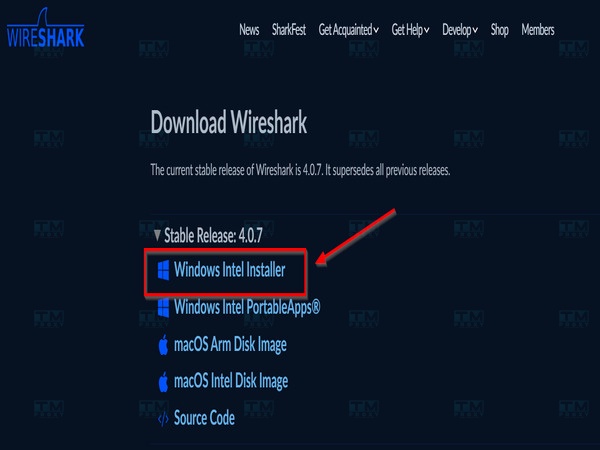
- Visit wireshark.org and click Download.
- Select the appropriate version (64-bit or 32-bit) and download the
.exefile. - Run the installer: Next → I Agree → keep default Select Components.
- Install Npcap when prompted (packet capture library).
- Click Install and wait for completion. Click Finish to exit.
Installing Wireshark on macOS
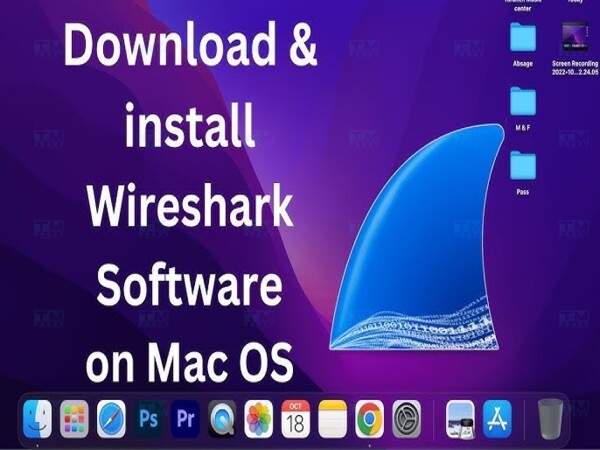
- Visit wireshark.org and download the
.dmgfile for macOS. - Open the
.dmgfile and drag the Wireshark icon to the Applications folder. - On first launch, go to System Preferences → Security & Privacy → Open Anyway if warned.
- Grant network traffic access when prompted, enter your admin password.
- Select Capture → choose a network interface to start analyzing.
Installing Wireshark on Ubuntu
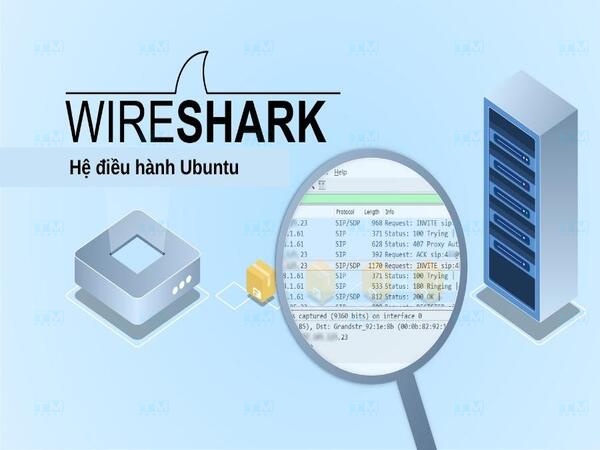
# Update system
sudo apt update

# Install Wireshark
sudo apt install wireshark

# Allow non-root users (select Yes when prompted)
sudo usermod -aG wireshark $(whoami)

# Verify installation
wireshark --version
Restart your machine after running usermod for changes to take effect.
Installing Wireshark on RedHat/Fedora

# Update system
sudo dnf update -y

# Install Wireshark
sudo dnf install wireshark -y

# Grant user permissions
sudo usermod -aG wireshark $USER

# Launch Wireshark
wireshark
Installing Wireshark on Kali Linux
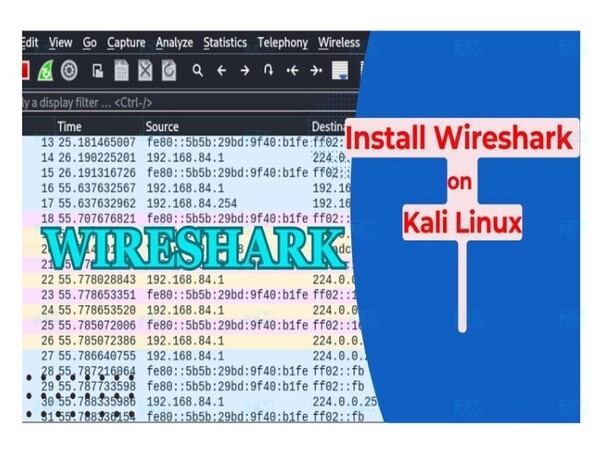
Kali Linux usually comes with Wireshark pre-installed. If not available or needs updating:
# Update and install
sudo apt update && sudo apt upgrade
sudo apt install wireshark

# Grant permissions
sudo usermod -aG wireshark $USER
Restart your machine and open Wireshark from Terminal or the application menu.
Basic Usage Guide

Capture Packets: Select a network interface (Ethernet/Wi-Fi) → click Start. Wireshark displays packets in real time. Click Stop to end.
Save and Open Files: Select File → Save As to save as .pcap or .pcapng. Reopen with File → Open.
Filter Packets: Enter filters in the Display Filter bar:
ip.addr == 192.168.1.1        # Filter by IP
tcp.port == 443                # Filter by port
http                           # Show HTTP only
dns                            # Show DNS only
tcp.flags.syn == 1             # Filter SYN packets
Inspect Packets: Double-click a packet to view details by layer: Ethernet → IP → TCP/UDP → Application Data.
Customize Colors: Go to View → Coloring Rules to distinguish packet types with color coding.
Conclusion: Wireshark is a powerful, free, open-source network analysis tool with multi-platform support. While the interface can be complex for beginners, Wireshark is an essential tool for network administrators and security professionals.