





GUI (Graphical User Interface) lets users interact with computers through images, icons, and menus instead of text commands. This article explains what GUI is, its main components, pros and cons, and a detailed GUI vs CLI comparison.
High-Speed Proxy - Ready to Try?
ALGO Proxy offers residential, datacenter & 4G proxies in 195+ countries
What is GUI?
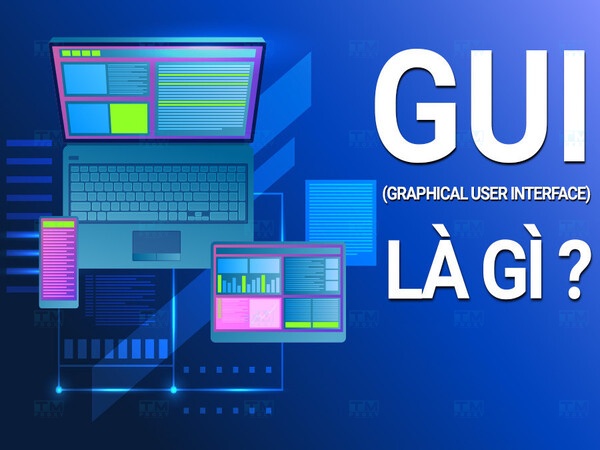
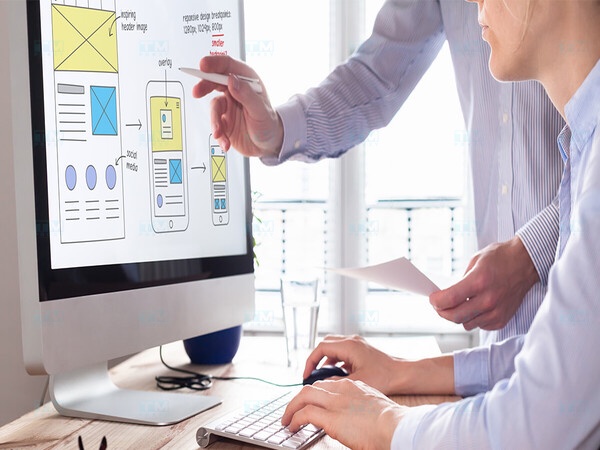
GUI (Graphical User Interface) is a method of human-computer interaction through graphical elements: icons, buttons, windows, menus, and toolbars.
Instead of typing text commands like CLI (Command-Line Interface), GUI users interact with a mouse, keyboard, or touchscreen — clicking, dragging, scrolling. Every popular OS (Windows, macOS, Linux Desktop, Android, iOS) uses GUI.
GUI operates on an event-driven model:
- User performs an action (click, keypress, touch).
- System creates a corresponding event.
- Event handler processes the event and executes the action.
- GUI updates the interface with feedback.
Main GUI Components
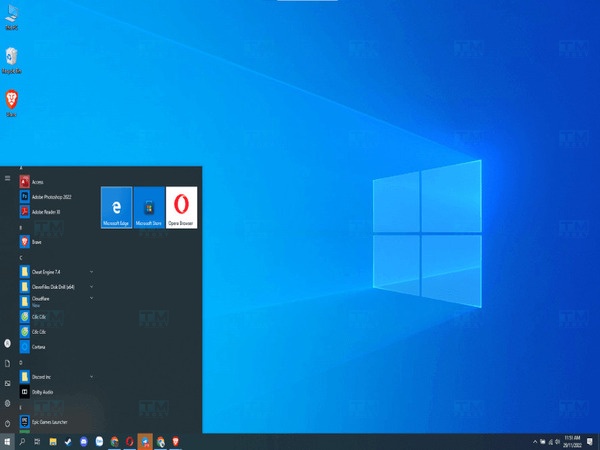
| Component | Description | Example |
|---|---|---|
| Window | Area displaying application content | Browser window, File Explorer |
| Menu | List of commands and options | File, Edit, View, Help |
| Icon | Visual representation of programs/files | Desktop app icons |
| Button | Clickable element performing an action | OK, Cancel, Save, Delete |
| Dialog | Pop-up requesting confirmation/input | Save As, Print, Alert |
| Checkbox | Toggle option on/off | Remember me, Accept terms |
| Radio Button | Select one from multiple options | Gender, payment method |
| Scrollbar | Scroll through content | Web page, list scrolling |
| Text Field | Text input area | Search box, username field |
| Toolbar | Bar containing tool buttons | Word toolbar, Photoshop tools |
GUI vs CLI

| Criteria | GUI | CLI |
|---|---|---|
| Interaction | Mouse, touch, visuals | Text commands |
| Learning curve | Easy, intuitive | Steep, requires memorizing commands |
| Operation speed | Slower (many clicks) | Faster (1 command = many actions) |
| Resources | Heavy (RAM, CPU, GPU) | Light, minimal resources |
| Automation | Difficult (complex macros/scripts) | Easy (shell scripts, pipelines) |
| Multitasking | Visual (multiple windows) | Efficient (tmux, screen) |
| Customization | Limited | Flexible, deep |
| Best for | Regular users | Developers, sysadmins |
| Examples | Windows Explorer, Finder | Bash, PowerShell, Terminal |
History
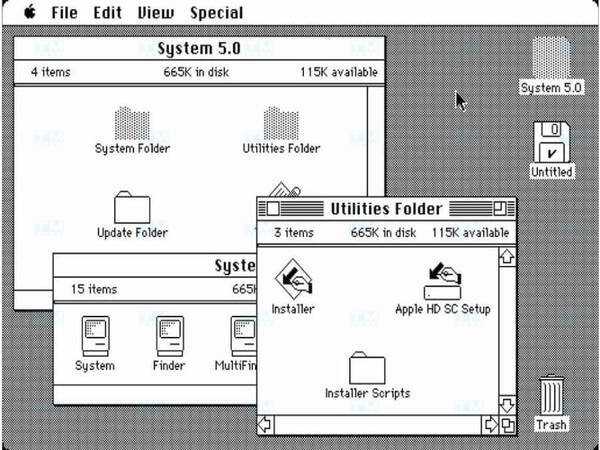
| Year | Event |
|---|---|
| 1963 | Ivan Sutherland creates Sketchpad — first GUI |
| 1973 | Xerox PARC develops Alto — first GUI computer |
| 1984 | Apple launches Macintosh — first mainstream GUI |
| 1985 | Microsoft releases Windows 1.0 |
| 1990s | Windows 95 brings GUI to hundreds of millions |
| 2007 | iPhone launches — multi-touch GUI |
| 2010s | Flat design, Material Design, responsive UI |
| 2020s | Voice UI, AR/VR interface, AI-assisted UI |
Pros and Cons
| Pros | Cons |
|---|---|
| Easy to learn, intuitive | Resource-heavy (RAM, CPU, GPU) |
| Beginner-friendly | Slower than CLI for repetitive tasks |
| Visual multitasking (multi-window) | Hard to automate (scripting) |
| Visual feedback (animation, color) | Hard to deeply customize system config |
| Reduces errors via validation | Higher development cost than CLI |
| Accessibility support (screen reader) | Complex when too many features |
Interaction Methods

- Mouse: Click, double-click, drag & drop, hover, right-click.
- Keyboard: Shortcuts (Ctrl+C, Ctrl+V), Tab navigation, Enter confirmation.
- Touch: Tap, swipe, pinch-to-zoom, long press, gestures.
- Voice: Siri, Google Assistant, Cortana — voice-controlled GUI.
Conclusion: GUI is a graphical interface that lets users interact with computers through visuals instead of text commands. GUI is easy to learn and intuitive but more resource-intensive than CLI. Modern OSes support both GUI and CLI — the choice depends on user needs and expertise.