





Docker is a containerization platform that packages applications along with their dependencies into lightweight containers for fast and consistent deployment. This article explains what Docker is, how it works, how to install it on various operating systems, and basic Docker commands.
High-Speed Proxy - Ready to Try?
ALGO Proxy offers residential, datacenter & 4G proxies in 195+ countries
What is Docker?
What is Docker? Docker is a software platform that allows you to build, deploy, and run applications more easily through the use of containers (on a virtualization platform).
More about Docker: Docker helps package software into standardized containers that contain all the necessary components for the software to run, such as libraries, system tools, source code, and runtime environments. When you need to deploy an application on any server, you simply run the Docker container, and the application will start immediately.
With Docker, deploying and scaling applications becomes easy in any environment, while ensuring that your code always runs stably.
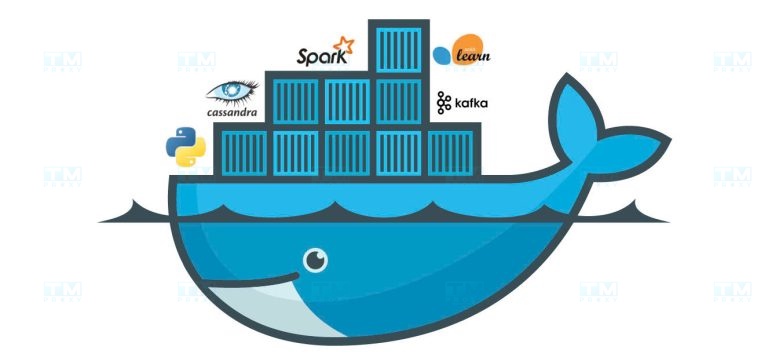
What is a Docker Container?
A container is a tool that helps developers package an application along with all its dependencies into a compact unit. This unit can be deployed on many different computers, regardless of the differences in configuration between each machine.
Both Docker and virtual machines (VMs) are virtualization technologies, but Docker has several outstanding advantages that make it more popular.
Advantages of Docker Containers
- Easy to use: Docker has a simple and intuitive interface, suitable for everyone from developers to system administrators. It makes creating, managing, and deploying containers easy.
- Fast: Containers are relatively compact and can be launched in just a few seconds, making them ideal for application development and testing.
- Portability: Containers can be deployed on any platform that supports Docker, simplifying application deployment across different clouds or environments.
- Scalability: Containers can be connected together to form complex applications, making them ideal for deploying microservices applications.
History and Evolution of Docker
Docker was created by Solomon Hykes and Sebastien Pahl in 2010. The project was initially developed by Hykes as part of an internal project to support easier application deployment on the Cloud platform at dotCloud, a PaaS company that shut down in 2016.
Later, container technology was developed and led to Docker's success in 2013. The tool quickly attracted attention from the community thanks to its convenience and ability to make applications portable. By 2017, Docker had become a widely used container tool globally.
The Docker platform was built on existing virtualization technologies such as LXC and chroot, but it simplified the use of these technologies and provided additional features, including:
- Multi-platform support: Docker can run on Linux, Windows, and macOS.
- Support for many application types: Docker is used to run web applications, server applications, mobile applications, and many other types of applications.
- Microservices support: Docker enables the creation and deployment of microservices applications.
Docker quickly became a popular tool widely used by developers, system administrators, and enterprises globally. According to a report from Red Hat, over 80% of large enterprises currently use Docker.
How Docker Works
The Docker tool works by providing a standard method to run code, similar to how virtual machines virtualize server hardware to reduce direct management. However, instead of virtualizing hardware, Docker containers virtualize the application's runtime environment. When Docker is installed on a server, it provides basic commands to create, start, and stop containers.
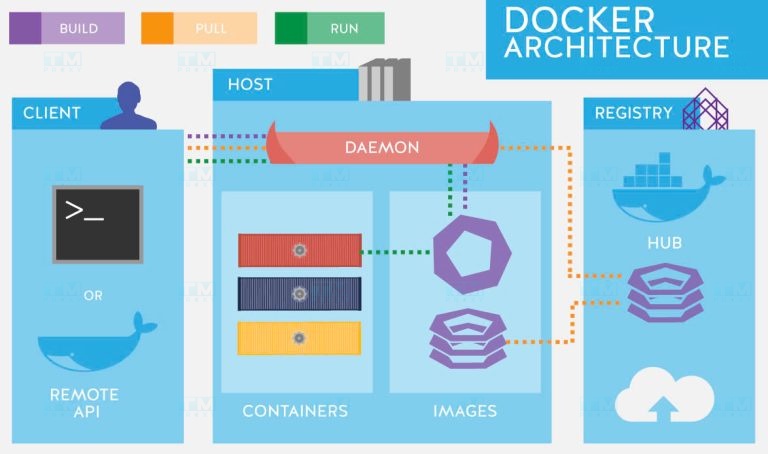
Docker's architecture consists of two main components: Docker Engine and Docker Client. Docker Engine is a program running on the server, responsible for creating, starting, and managing containers. Docker Client is an application running on the user's computer, allowing users to interact with Docker Engine.
Docker Engine and Docker Client communicate with each other via REST API, a set of standard protocols that enable applications to communicate with each other.
Additionally, Docker provides several services to help you easily deploy and manage containers at scale, including:
- Amazon ECS (Elastic Container Service): A managed service that allows you to create and manage container clusters on AWS.
- AWS Fargate: This service allows you to run containers without managing the underlying infrastructure.
- Amazon EKS (Elastic Kubernetes Service): A managed Kubernetes service that helps you deploy Kubernetes applications on AWS.
- AWS Batch: A batch job management service that allows you to run batch jobs on AWS.
If you use an older Windows or Mac operating system, you can use Docker Toolbox. This is a set of tools for running Docker on Windows and Mac, including Docker Engine, Docker Client, Docker Compose, and Kitematic.
Docker Workflow
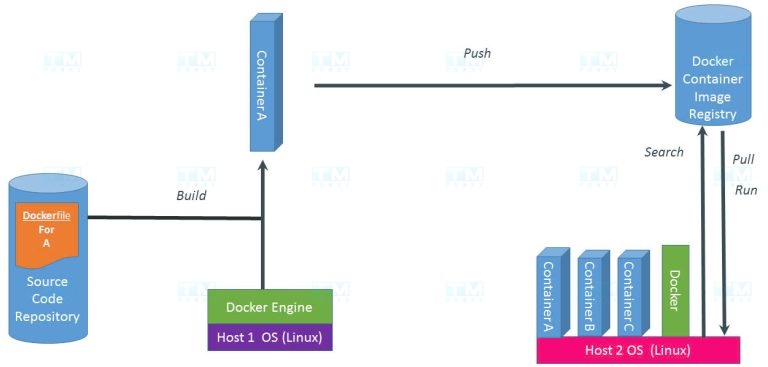
The Docker workflow typically consists of three main steps: Build, Push, and Pull/Run.
Building Images (Build)
This is the first step in the process of creating a Dockerfile. In the Dockerfile, we can include our source code along with all the necessary libraries to run the application. Specifically, the Dockerfile will be built on a computer with Docker Engine installed. After the build process is complete, we will have a container with our application.
Pushing Images to a Registry (Push)
To store containers in the cloud, we can use a registry like Docker Hub. To do this, you need to create an account on Hub. After having an account, you can use the push command to push the container to the registry.
Pulling and Running Images (Pull, Run)
For another computer to use the container, you need to pull the container from the registry to that machine. That computer also needs Docker Engine installed. After the container is pulled, you can run it on the other computer.
Main Components of Docker
Docker consists of several main components, each playing an important role in the Docker ecosystem:
Docker Engine
Docker Engine serves as the main tool for packaging and deploying applications. It consists of two main components: Docker daemon and Docker client. The daemon is a background program running on the server, responsible for creating, starting, and managing containers. Docker client is an application running on the user's computer, allowing users to interact with the daemon.
Functions of Docker Engine:
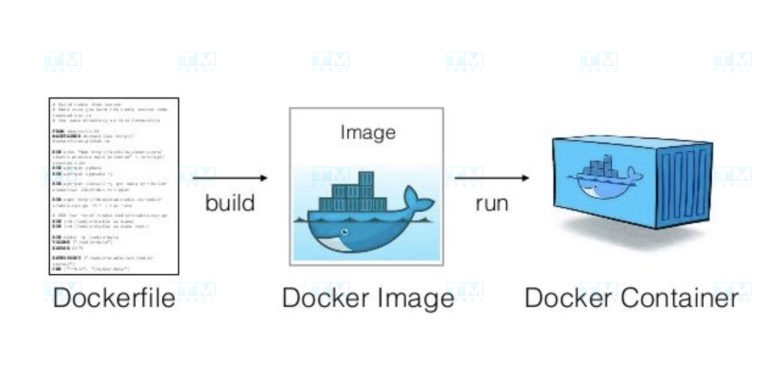
- Creating images: An image is a file containing all the necessary components to run an application. Docker Engine uses a set of instructions called a Dockerfile to create images.
- Running containers: A container is a lightweight copy of the operating system and application. Docker Engine uses images to create and run containers.
Benefits of Docker Engine for application packaging:
- Easy application packaging: Docker Engine helps you easily package applications into reusable images.
- Consistent application execution: Containers can run on any server with Docker Engine installed, ensuring consistency when deploying applications across different environments.
- Resource savings: Containers only use the system resources that the application needs, saving resources on the server.
Docker Images
Docker Images are the blueprints of containers. Each image defines all the necessary components for an application to run. Once created, an image becomes immutable. You can create and run instances from images, called containers.
Docker Containers
Docker Containers are running instances of Docker images. Each container packages an application and all its necessary dependencies. Containers isolate software from environmental influences, helping applications run stably regardless of differences between environments (such as staging and production).
Docker Hub
Docker Hub is a popular registry service provided by Docker. It is where you can upload (push) your Docker images, share them with the community or colleagues, and download (pull) images from the community or other trusted sources.
Why Should You Use Docker?
Installing and deploying applications on one or more servers can be a complex and time-consuming process. It requires setting up the necessary tools and environments for the application while ensuring that the application works correctly on every server. A major challenge that developers often face is the inconsistency between environments on different servers. Docker provides an effective solution to address these issues.
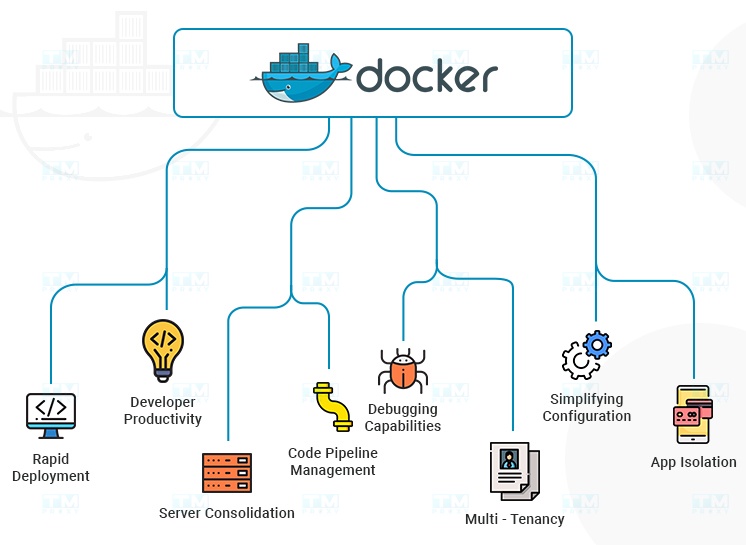
Faster Software Delivery
Docker helps deliver software 7 times faster than traditional methods. Applications are packaged into compact containers that are easy to transport, allowing developers to deploy applications quickly and conveniently.
Simplified Application Operations
Docker simplifies application operations by packaging applications into easy-to-manage containers. This helps operations teams easily deploy, monitor, and troubleshoot applications effectively.
Smooth Application Migration
Docker helps migrate applications from the local development environment to the production environment smoothly and quickly. Containers are compactly packaged and can run on any server with Docker Engine installed, making application migration easier and more efficient.
Cost Savings
Docker helps save costs through its ability to optimize server resources. Containers only use the system resources needed for the application, allowing you to run multiple applications on the same server, minimizing the number of servers needed and reducing operational costs.
When Should You Use Docker?
Here are some typical cases where Docker maximizes its effectiveness:
Deploying Microservice Architecture
Microservice architecture is a method of developing and deploying applications by dividing them into small, independent services. Each service can be deployed, managed, and scaled independently.
Docker is an ideal tool for deploying Microservice architecture, helping to package services into compact containers. This makes deploying and managing services easier and more efficient.
Accelerating Application Deployment
Docker simplifies and automates the steps of building, pushing applications to the server, and executing them. As a result, companies can accelerate the deployment process and improve operational efficiency.
For example: Docker can be used to build an application from source code, push the application to a server, and run the application with just a single command, helping developers save time and effort.
Flexible Application Scaling
Docker supports flexible application scaling. This means you can easily add or remove containers as needed.
For example: If your web application needs to handle high traffic, you can easily add new containers to increase the application's processing capacity.
Creating Local Environments Similar to Production
Docker helps create local environments identical to production environments, helping developers build and test applications more accurately and efficiently.
In summary, Docker is a powerful tool that can be used in many different situations. The cases above are typical examples of how Docker can be effective in deploying and managing applications.
Benefits of Using Docker
Applying Docker to your development and deployment workflow brings many significant benefits:
- Time and cost savings: Docker helps reduce environment setup time and hardware costs. You can quickly create and delete development, testing, and production environments.
- Increased development productivity: Developers can focus on writing code instead of worrying about environments. Docker helps eliminate the common "works on my machine" problems.
- Improved portability: Applications packaged in containers can be easily moved between different environments, from development machines to production servers or the cloud.
- Easy scaling: The ability to quickly create and delete containers helps scale applications flexibly. You can easily add or reduce the number of application instances to meet demand.
- Enhanced security: Isolating applications in containers helps minimize security risks. If one container is compromised, other containers and the host system remain protected.
- Good CI/CD support: Docker integrates easily with CI/CD tools, helping improve and automate the development, testing, and deployment workflow.
- Easy version management: Docker Images allow you to easily manage and switch between different versions of applications and their dependencies.
- Multi-platform support: Docker can run on many different operating systems and cloud platforms, providing high flexibility in choosing deployment environments.

Docker Installation Guide
Docker is a powerful tool, but to start using it, you need to install it correctly. Below is a detailed guide for installing Docker on the most popular operating systems.
Installing Docker on Windows 10
Steps to install on Windows:
- Download the Docker Desktop for Windows installer from the official website at: Docker Desktop for Windows.
- Run the installer and follow the instructions.
- For Windows 10, you need to enable Hyper-V virtualization mode.
Methods to enable Hyper-V virtualization:
Method 1: Using PowerShell
- Open PowerShell with administrator privileges and run the following command to enable Hyper-V:
Enable-WindowsOptionalFeature -Online -FeatureName Microsoft-Hyper-V -All
Method 2: Using Windows Settings
- Right-click on the Windows icon, select Apps and Features.
- Select Programs and Features.
- Select Turn Windows Features on or off.
- Check Hyper-V as shown below.
Installing Docker on macOS
You can download the Docker installer for macOS at the following link: Docker Desktop for Mac, then install it following the instructions like any other regular tool.
Installing Docker on Ubuntu
Ubuntu is one of the most popular Linux distributions and Docker supports it very well. Here is how to install Docker on Ubuntu:
-
First, update the package index:
sudo apt-get update -
Install the necessary packages to allow apt to use a repository over HTTPS:
sudo apt-get install apt-transport-https ca-certificates curl gnupg lsb-release -
Add Docker's official GPG key:
curl -fsSL https://download.docker.com/linux/ubuntu/gpg | sudo gpg –dearmor -o /usr/share/keyrings/docker-archive-keyring.gpg -
Set up the stable repository:
echo "deb [arch=amd64 signed-by=/usr/share/keyrings/docker-archive-keyring.gpg] https://download.docker.com/linux/ubuntu $(lsb_release -cs) stable" | sudo tee /etc/apt/sources.list.d/docker.list > /dev/null
Installing Docker Engine
sudo apt-get update
sudo apt-get install docker-ce docker-ce-cli containerd.io
- To confirm that Docker has been installed correctly, run the "hello-world" container:
sudo docker run hello-world
Installing Docker on CentOS 7/RHEL 7
CentOS and Red Hat Enterprise Linux (RHEL) are popular choices for server environments. Here is how to install Docker on these operating systems:
-
Install the necessary packages:
sudo yum install -y yum-utils device-mapper-persistent-data lvm2 -
Set up the Docker repository:
sudo yum-config-manager –add-repo https://download.docker.com/linux/centos/docker-ce.repo -
Install Docker:
sudo yum install docker-ce docker-ce-cli containerd.io -
Start and enable the Docker service:
sudo systemctl start docker
- Confirm that Docker has been installed correctly by running the "hello-world" container:
sudo docker run hello-world
Installing Docker on CentOS 8/RHEL 8
For newer versions of CentOS and RHEL, the installation process is slightly different:
-
Install the necessary packages:
sudo dnf install -y dnf-utils device-mapper-persistent-data lvm2 -
Add the Docker repository:
sudo dnf config-manager –add-repo=https://download.docker.com/linux/centos/docker-ce.repo -
Install Docker:
sudo dnf install docker-ce docker-ce-cli containerd.io -
Start and enable the Docker service:
sudo systemctl start dockersudo systemctl enable docker -
Confirm the installation by running the "hello-world" container:
sudo docker run hello-world
Basic Docker Commands
To manage Docker components, you can use the command-line interface (CLI).
-
On macOS and Linux, open the terminal and enter commands.
-
On Windows, you can use PowerShell to run commands. Here are some commonly used basic commands:
-
List images/containers:
$ docker image/container ls -
Remove an image/container:
$ docker image/container rm <image/container name> -
Remove all existing images:
$ docker image rm $(docker images -a -q) -
List all existing containers:
$ docker ps -a -
Stop a specific container:
$ docker stop <container name> -
Run a container from an image and rename the container:
$ docker run --name <container name> <image name> -
Stop all containers:
$ docker stop $(docker ps -a -q) -
Remove all existing containers:
$ docker rm $(docker ps -a -q) -
Display logs of a container:
$ docker logs <container name> -
Build an image from a container:
$ docker build -t <image name> -
Create a container running in the background:
$ docker run -d <image name> -
Pull an image from Docker Hub:
$ docker pull <image name> -
Start a container:
$ docker start <container name>
Comprehensive Guide to Using Docker
To use Docker effectively, you need to understand how to manage containers, images, and how to create your own custom images. Below is a detailed guide on these aspects.
Managing Docker Containers
Containers are the core component of Docker. Here are some basic operations for managing containers:
-
Create and run a container:
docker run -d –name my_container nginxThis command creates and runs an nginx container in detached mode (-d), naming it "my_container". -
List running containers:
docker psThis command will display all running containers on your system. -
Stop a container:
docker stop my_containerThis command will stop the container named "my_container". -
Remove a container:
docker rm my_containerThis command will remove the container named "my_container". Note that the container must be stopped before removal.
Managing Docker Images
Images are templates used to create containers. Here is how to manage images:
-
Pull an image from Docker Hub:
docker pull ubuntu:latestThis command will download the latest version of the Ubuntu image. -
List downloaded images:
docker imagesThis command will display all images available on your local machine. -
Remove an image:
docker rmi ubuntu:latestThis command will remove the latest version of the Ubuntu image from your local machine.
Creating and Using Dockerfiles
A Dockerfile is a text file containing instructions for building a custom Docker image. Below is an example of how to create and use a Dockerfile:
- Create a Dockerfile:
FROM node:14
WORKDIR /app

COPY package*.json ./

RUN npm install

COPY . .

EXPOSE 3000

CMD ["npm", "start"]
This is a simple Dockerfile to create an image for a Node.js application.
-
Build an image from the Dockerfile:
docker build -t my-node-appThis command will create a new image named "my-node-app" from the Dockerfile in the current directory. -
Run a container from the newly created image:
docker run -d -p 3000:3000 my-node-appThis command will create and run a container from the "my-node-app" image, mapping port 3000 of the container to port 3000 of the host machine.
Basic Docker Concepts
Here are some common concepts you may encounter:
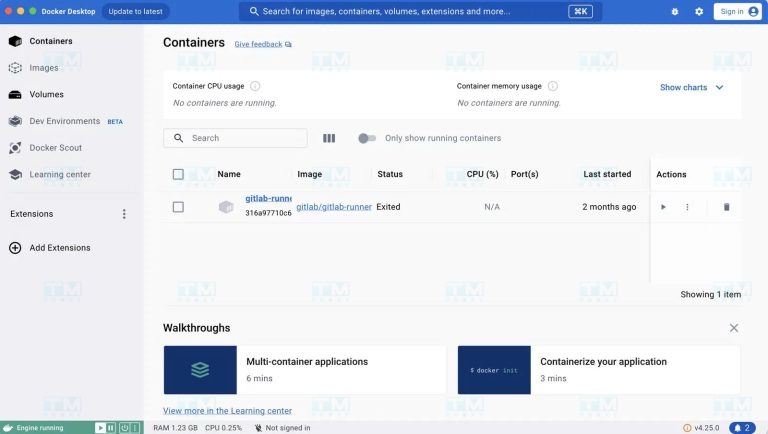
- Container: A running instance of an image. An image is a read-only file, while a container is an executable file that allows users to interact and administrators to adjust settings and policies.
- Volumes: Storage areas for container data. Volumes are created when a container is initialized, helping data persist even when the container is stopped or removed.
- Machine: A tool that helps create and manage Engines on servers, supporting the deployment and operation of containers in server environments.
- Compose: A tool that helps you run applications by defining container configurations in a configuration file, allowing you to manage and deploy multiple containers simultaneously with ease.
Understanding these concepts will help you use Docker more effectively in your application development and deployment process.
{{< test-result title="So sanh Docker Container va May ao (VM)" headers="Tieu chi|Docker Container|May ao (VM)" rows="Khoi dong|Vai giay|Vai phut;Kich thuoc|MB|GB;Hieu suat|Gan nhu native|Overhead ao hoa;Mat do|Hang tram tren 1 host|Hang chuc tren 1 host;Co lap|Cap OS (process)|Cap phan cung;Di dong|Rat cao|Trung binh" />}}
Conclusion: Docker has changed the way modern applications are developed and deployed. With containerization capabilities, Docker helps save resources, accelerate CI/CD, and simplify microservices management. From installation on Windows, macOS to Linux, Docker is an indispensable tool for every developer and DevOps team.